

Here we are with the second part of the guide: Layouts With Bootstrap 4
Horizontal alignment
To align the columns horizontally we can use justify-content-value classes, which use the justify-content property of the flexible model:
justify-content-start, to align to the left (default) justify-content-center, to align the center justify-content-end, to align to the right justify-content-between, to align with equal spaces between columns justify-content-around, which is similar to the previous one with equal space to the left and right of each column
.justify-content-start {
-ms-flex-pack: start !important;
justify-content: flex-start !important;
}
.justify-content-end {
-ms-flex-pack: end !important;
justify-content: flex-end !important;
}
.justify-content-center {
-ms-flex-pack: center !important;
justify-content: center !important;}
.justify-content-between {
-ms-flex-pack: justify !important;
justify-content: space-between !important;
}
.justify-content-around {
-ms-flex-pack: distribute !important;
justify-content: space-around !important;
}
In this example the columns are aligned to the left on a justify-content-start basis:
<div class="container text-white">
<div class="row justify-content-start bg-dark">
<div class="col-auto bg-primary">col-auto</div>
<div class="col-auto bg-danger">col-auto</div>
<div class="col-auto bg-warning text-dark">col-auto</div>
</div>
</div>

In this example the columns are aligned to the right by the use of justify-content-end:
<div class="container text-white">
<div class="row justify-content-end bg-dark">
<div class="col-auto bg-primary">col-auto</div>
<div class="col-auto bg-danger">col-auto</div>
<div class="col-auto bg-warning text-dark">col-auto</div>
</div>
</div>

In this example the columns are aligned in the center thanks to justify-content-center:
<div class="container text-white">
<div class="row justify-content-center bg-dark">
<div class="col-auto bg-primary">col-auto</div>
<div class="col-auto bg-danger">col-auto</div>
<div class="col-auto bg-warning text-dark">col-auto</div>
</div>
</div>
In this example the columns are aligned with equal spaces between them when using justify-content-between:
<div class="container text-white">
<div class="row justify-content-between bg-dark">
<div class="col-auto bg-primary">col-auto</div>
<div class="col-auto bg-danger">col-auto</div>
<div class="col-auto bg-warning text-dark">col-auto</div>
</div>
</div>

In this example the columns are aligned with equal spaces between them when using justify-content-around:
<div class="container text-white">
<div class="row justify-content-around bg-dark">
<div class="col-auto bg-primary">col-auto</div>
<div class="col-auto bg-danger">col-auto</div>
<div class="col-auto bg-warning text-dark">col-auto</div>
</div>
</div>
READ ALSO THE FIRST PART : Layouts with Bootstrap 4: how to create a responsive web

Rows inside rows: nesting
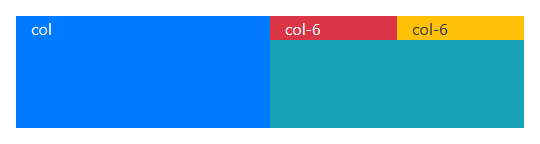
Columns can contain other rows in turn, to subdivide their contents. However, a row cannot have a row as a direct daughter, it must always be within a column:
<div class="container text-white">
<div class="row bg-dark h-25">
<div class="col bg-primary">col</div>
<div class="col-6 bg-info">
<div class="row">
<div class="col-6 bg-danger">col-6</div>
<div class="col-6 bg-warning text-dark">col-6</div>
</div>
</div>
</div>
</div>

READ ALSO: Layouts With Bootstrap 4: How to Create a Responsive Web