

We're going to explain how to use the Chrome browser as a file browser, both on Android and on your computer. This is a hidden feature of Chromium that will allow you to browse through the internal folders of your PC or mobile phone without needing any specific application to do so.
You'll also be able to use this trick in other Chromium-based browsers, such as Microsoft Edge in its mobile and PC versions. Sometimes, we want to search for a file and we are unlucky that the manufacturer of our mobile phone has not included a competent browser. In these cases, it may be easier to resort to this trick rather than go and download another one.
To do this trick on Android, you have to open your Chrome, Edge or other Chromium-based browser. Then, type the term file:///sdcard/ in the search bar. You'll be telling the browser to look for the sdcard folder on your phone which is the name Android gives to the internal storage. It's like putting C:.
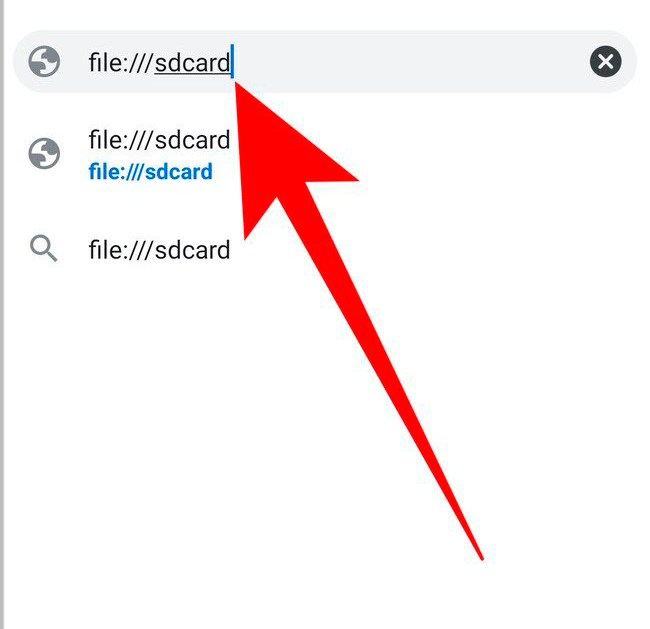
When you type in this address, the browser will ask permission to access your internal storage. When you give it, you will enter the root folder of your mobile's internal storage. Here you can start clicking on the folders you want to browse, or go back as you would on any website.
By exploring the internal folders of your mobile, you will also be able to see the files that are there. Here, the multimedia files are not previewed, you will not know what is in them until you open them. What you will see are their extensions and size, as well as the last modification date. You will also see the hidden folders, which are the ones with a dot at the beginning of the name.
The good news is that most browsers will also play media files when you click on them, such as photos and videos. We've tested them on both Chrome and Microsoft Edge, which are the browsers I use.
Your browser as an explorer on your PC
You can do the same in the desktop version of Chrome, Edge and other Chromium-based browsers. All you have to do is type the term file:///C: in the search bar at the top. You can also browse other hard drives or storage units by typing their letter in the command instead of C:.
When you type in this address, the browser will take you to the root folder of the hard drive or storage unit you have indicated. Here, you can start clicking on the folders you want to enter, or go back just like you would on a website.
By exploring the computer's internal folders, you will also be able to see the files that are there. Here, the multimedia files are not previewed, you will not know what is in them until you open them. What you will see are their extensions and size, as well as the last modification date. You will also see the hidden folders, which are the ones with a dot at the beginning of the name.
The good news is that most browsers will also play media files when you click on them, such as photos and videos. We have tested them without problems in both Chrome and Microsoft Edge, which are the browsers I use.
Web vector created by stories - www.freepik.com