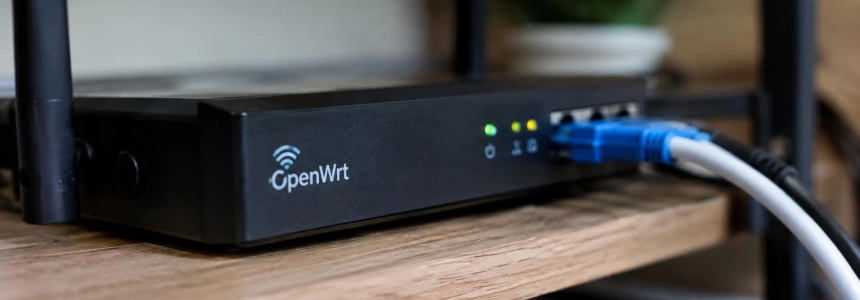
An Archer C6 V3 user discovered that their router was running OpenWrt 24.10.5, released in December 2025, and that the series was no longer the current branch. OpenWrt did not update the device on its own: the user had installed the firmware and then stopped checking the dashboard. If you manage a router with OpenWrt—or a TP-Link Archer C6—check the installed version and whether an update is available for your model.
How to tell whether your router needs attention
Log in to LuCI, the OpenWrt web interface, and check the version shown on the overview page. In the case described by XDA, that page provided the clue: the device showed 24.10.5, even though later versions were already available. Do not assume OpenWrt will notify you automatically. The user explained that they did not have the attended-sysupgrade extension installed, which would have let them check for updates from LuCI.
Then compare the version with the official OpenWrt downloads page. As of the information published, the project listed 25.12.6 as the current stable version and described 24.10 as an older branch that would continue receiving limited security and bug fixes for a while. XDA, meanwhile, said 24.10 had reached end of life in September 2026. Since those descriptions do not entirely agree, do not treat a branch label as a substitute for checking which updates OpenWrt offers for your device.
| Version | Status indicated by OpenWrt | Release date |
|---|---|---|
| 25.12.6 | Current stable version | October 18, 2026 |
| 24.10.8 | Older branch; still receiving limited fixes | July 24, 2026 |
| 24.10.5 | Version installed in the XDA case | December 19, 2025 |
The fact that the router is a TP-Link Archer C6 is not enough to determine which firmware you need: the hardware version and the firmware it is running also matter. TP-Link published a notice for CVE-2026-89052 identifying the Archer C6 V2 as affected and listing 1.2.1 Build 260902 as the fixed firmware. That notice is specific to that version and TP-Link firmware; by itself, it does not establish what applies to every OpenWrt installation.
Steps to check and update
Note the model and hardware version. Before downloading anything, confirm the router's exact model and revision. TP-Link warns that incorrect firmware can damage the device. For the Archer C6, the support page distinguishes revisions such as V2 and V2.80; do not treat their files as interchangeable. If you use OpenWrt, also identify the device variant so you can select the corresponding image.
Check which firmware is installed. Log in to the OpenWrt administration panel and check the version on the overview page, as the XDA user did. Write it down along with the model and revision. If the router is running TP-Link's official firmware rather than OpenWrt, check the manufacturer's support page for that specific revision.
Look for the version available for your device. Compare your version with the official OpenWrt downloads and verify that an image for your model is available. The project page recommends using the latest version possible, but also warns that development builds are automated and generally untested. For this case, the published reference is the stable 25.12 branch; do not choose a development image just because it has a later date.
Save the information you will need to reconfigure services. Check which packages and features you added to OpenWrt and make a note of them before updating. In the XDA case, the update preserved the configuration, but packages such as WireGuard, banIP, nlbwmon, and SQM disappeared, along with the Services menu. Therefore, seeing certain settings still displayed does not mean that all the components they rely on are still installed.
Choose the correct image type. XDA distinguishes three common types: SYSUPGRADE for updating an existing installation, FACTORY for a new installation, and KERNEL. The author nearly chose the wrong one. Do not select an image based only on the version number: check the file name and purpose for your model before starting the process.
Apply the update and check the result. Follow the instructions for your device and check the version in the panel again after rebooting. The OpenWrt project provides downloads by model; this information does not establish a universal menu path or an identical procedure for all routers. If you use TP-Link firmware, the manufacturer recommends not interrupting the power during the update and, if possible, uploading the file over a wired connection.
Verify services that depend on packages. After updating, check that the features you used are still working. XDA found the WireGuard tunnel wg0 marked “Not present” and the error “Unsupported protocol type”; banIP, nlbwmon, and SQM were also missing. In 25.12, the switch from opkg to apk was cited as the reason installed packages did not appear in the standard image. Reinstall and configure what you need by following the OpenWrt instructions for that version.
Set up regular update checks. In XDA's experience, attended-sysupgrade appeared to be installed by default after upgrading to 25.12.6 and offered to check for updates when the overview page was opened. Check whether this feature is available in your installation; do not assume it is included in every version or configuration. If it is not there, check the official downloads from time to time.
Mistakes to avoid
Do not confuse installed firmware with up-to-date firmware. Running OpenWrt on a router can extend its useful life, but it does not remove the need to check for updates. The XDA user had replaced the original firmware and still went months without installing newer versions.
Do not download an image for a different revision. TP-Link's page separates downloads for the Archer C6 V2 and V2.80 and warns of the risk of using the wrong file. With OpenWrt, too, you need to find the file intended for your model, rather than assuming that all devices with a similar product name share an image.
Do not assume the update will preserve all packages. The XDA experience shows that the configuration could remain while packages and the Services menu disappeared. Check your VPN, address filtering, and bandwidth monitoring before considering the process complete.
Do not conflate TP-Link's notice with OpenWrt's status. According to TP-Link, CVE-2026-89052 affects the Archer C6 V2 running the manufacturer's firmware and is fixed in 1.2.1 Build 260902. For a device running OpenWrt, check OpenWrt updates for that device; do not install official TP-Link firmware as if it were an OpenWrt patch.
If your router is running OpenWrt 24.10, check which update applies to its model before deciding to upgrade. The current published version is 25.12.6, but the right image and packages depend on your device and how you have configured it.
Sources: XDA, TP-Link, TP-Link, OpenWrt Project, Unit 42