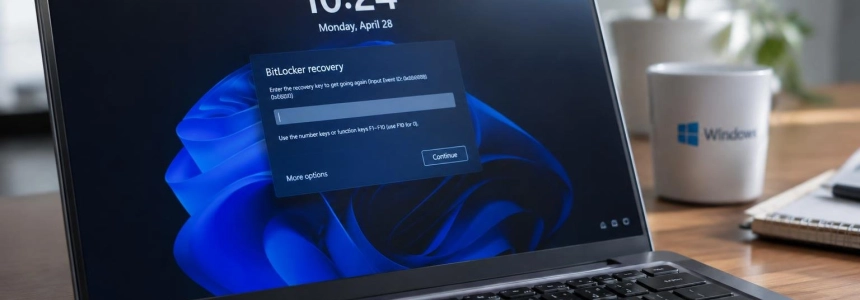
FastUnlock exploits a Narrator path to navigate Windows from the lock screen and execute code, according to tests by its discoverer and a reproduction by ThreatLocker. It potentially affects devices with a Microsoft account and physical access by an attacker; this is not a remote attack. There is no official patch, so it is worth checking how BitLocker unlocks your device and what state you leave it in when you step away.
The demonstration published by Nightmare Eclipse was conducted on Windows 11 26H2 with the November update installed. ThreatLocker confirmed that the resulting access reaches WSIAccount, a non-administrator account. Other versions of Windows 11 and Windows 10 have not been verified in the tests described; devices that use only local accounts would not meet the requirement specified by the researcher.
1. Check whether your device meets the conditions
According to the research, exposure depends on three factors: the Windows version, whether an account linked to Microsoft is present, and whether BitLocker requires a PIN at startup. You can check the last two points with PowerShell; to check the BitLocker protector, open the console as an administrator.
(Get-ItemProperty 'HKLM:\SOFTWARE\Microsoft\Windows NT\CurrentVersion').DisplayVersion
Get-LocalUser | Select-Object Name, Enabled, PrincipalSource
(Get-BitLockerVolume -MountPoint C:).KeyProtector.KeyProtectorType
In the first query, 26H2 is the version tested by the researcher. In the second, look for an account whose PrincipalSource field indicates MicrosoftAccount: that identifies an account linked to Microsoft. The third shows the protector types; TpmPin indicates that a startup PIN is configured. If Tpm appears but not TpmPin, the device may unlock the drive at startup without asking for that PIN.
This check does not cover every case. Devices with only local accounts do not match the requirement reported by the researcher. However, it is unclear whether devices that use only Entra ID work accounts are exposed: treat this as unknown, not safe.
2. Set a startup PIN for BitLocker
The measure recommended in opnF.sh's analysis is to require additional authentication at startup: BitLocker with TPM and a PIN. With this requirement, the drive is not unlocked until someone enters the PIN, and the device does not reach the lock screen that FastUnlock relies on. You can apply the setting through the relevant BitLocker policy in Group Policy or Intune, and then add the PIN on each device.
If you manage multiple devices, verify that the policy is actually applied and that startup prompts for the PIN. Having BitLocker enabled is not enough: the point is to prevent automatic unlocking before the sign-in screen appears. ThreatLocker also identifies the pre-boot PIN as a mitigation when the device has just been powered on.
3. Shut down or hibernate your laptop when you leave it
Until you have a PIN, do not just lock the device if it will be left outside your control. Shut it down or hibernate it, especially if it is a laptop left in a place where someone else could reach it. The published recommendation distinguishes these states from a locked device that has already started up and whose disk may have been unlocked.
The PIN only protects the startup process: the device must be shut down or hibernated for it to ask for the PIN again before starting Windows. If it remains locked after startup, adding a PIN does not make the already active screen request it again.
4. Consider blocking Narrator with caution
The researcher suggests preventing Narrator from running through AppLocker or a custom access control list while a fix is pending. But blocking Narrator has not been shown to withstand this method in the context of the lock screen. OpnF.sh describes it as a temporary measure, not a confirmed solution.
In addition, blocking it prevents people who rely on this accessibility feature from using it. Before deploying the restriction, identify those users and weigh the impact. If you decide to apply it in an organization, verify the result on the affected devices; do not assume that a general policy is enough to close the issue.
5. Treat an unattended laptop as an incident
The published information does not describe technical indicators for detecting a FastUnlock attempt or confirm real-world attacks. The practical risk to assess is whether a device may have been lost, stolen, or left unsupervised while locked, rather than shut down or hibernated. Follow your usual lost-device process in that case; do not assume the lock screen protected the data.
Mistakes to avoid
Do not confuse BitLocker being enabled with a startup PIN. A device can be encrypted and still automatically unlock the drive at startup. Check the configured protector, not just whether BitLocker is enabled.
Also, do not attribute administrator access to FastUnlock: ThreatLocker observed WSIAccount, a limited, non-administrator account. This does not eliminate the risk, but it does avoid describing the tested result as full administrative control. And do not extend the Windows 11 26H2 findings to other versions: the sources indicate they have not been verified.
Finally, do not treat blocking Narrator as a patch or leave a laptop exposed just because there have not yet been any attack alerts. Microsoft has not yet released a fix for FastUnlock; in the meantime, check the BitLocker PIN and shut down or hibernate devices when they are away from their authorized user.
Sources: Computer Hoy, GitHub, ThreatLocker, Tom's Hardware, opnF.sh