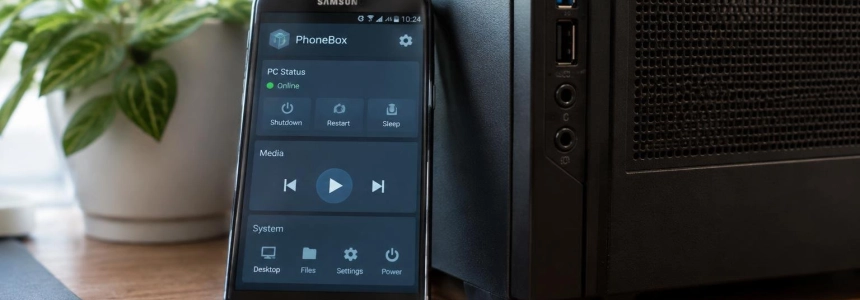
An Android phone tucked away in a drawer can become a touchscreen for your PC: PhoneBox pairs it with Windows, Linux, or macOS and lets you use it to view computer data or activate controls. No root access or account is needed; the Android installation is distributed as an APK from the project repository.
The setup below uses Windows and a USB connection, following the process described by the PhoneBox installer. We won't be programming an app from scratch: the practical steps are to install the agent and app, check the connection, and set up the panel in the browser's visual editor.
What you'll connect
PhoneBox has two components: a full-screen app on the phone and an agent on the computer. The visual editor opens in the browser and provides a preview as you modify the layout. The project also supports a Wi-Fi connection; in that case, enable it in the agent settings and pair the devices by scanning a QR code.
flowchart LR
    A["Android phone"] -->|"USB or Wi-Fi"| B["Agent on the PC"]
    C["Browser and visual editor"] --> B
    B -->|"Data and controls"| A
The phone can display CPU, GPU, and RAM graphs, among other data, and provide touch controls for apps, shortcuts, and keyboard macros. Xataka Móvil also describes features for managing processes, controlling volume per app, and operating OBS scenes. The editor is visual: this guide doesn't invent an API or configuration format that the project doesn't document here.
According to Xataka Móvil, the app works on phones running Android 5 or later. MakeUseOf recommends Android 6 or later because some widgets may scale poorly on Android 5. If your phone is old, this difference matters: compatibility doesn't guarantee that every element will look equally good.
1. Run the installer on Windows
Connect the phone via USB and enable USB debugging on Android. On Windows, open a regular Terminal window—not an administrator session—and run the command provided by MakeUseOf. The installer can install ADB and offer to install the app on the phone.
# Descarga y ejecuta el instalador de PhoneBox
irm https://raw.githubusercontent.com/ersinkoc/phonebox/main/setup.ps1 | iex
During the process, accept the ADB installation if offered, and decide whether you want the agent to start with Windows. The wizard then asks whether it should install PhoneBox and the Android app via ADB. Confirm the installation on the phone itself when prompted.
The app isn't distributed through the Play Store: it's installed as an APK from the repository. For this reason, accept only the installation you initiated, and make sure the prompt appears while you're setting up the connected phone.
2. Check the USB bridge
If Windows doesn't detect the phone, first check that ADB is available in the terminal. The installer can add it; if the command isn't recognized, return to the wizard and check the option to install it rather than assuming the phone connection is broken.
# Comprueba que ADB responde
adb version
With the phone connected and USB debugging enabled, list the visible devices. If the phone doesn't appear in the list, check the cable and connection, and make sure USB debugging is enabled before continuing.
# Muestra los dispositivos visibles para ADB
adb devices -l
PhoneBox uses ADB for the USB connection and, according to Xataka Móvil, can use it to wake the screen and open the panel. USB debugging grants access to the authorized computer; don't enable it for devices you don't trust.
3. Open the editor and arrange the panel
Once the agent is running, open the local editor in your browser. MakeUseOf gives the address as 127.0.0.1:8765 and notes that it can also be opened from the PhoneBox icon in the Windows system tray.
# Abre el editor local en el navegador predeterminado
Start-Process "http://127.0.0.1:8765"
The editor lets you arrange and adjust widgets and work with pages. For a first test, place a graph or resource indicator next to a control you plan to use, such as a shortcut. PhoneBox offers templates and a real-time preview; save your changes in the interface and check the result on the phone's screen.
The panel doesn't have to be limited to statistics: Xataka Móvil lists app and website launchers, shortcuts, macros, per-app volume, and OBS controls. It also describes integrations with Home Assistant and notifications. Choose only the modules you want at hand; the editor lets you build the layout without writing a configuration blindly.
4. Switch to Wi-Fi if you don't want to leave the cable connected
To use the phone without USB, enable Wi-Fi in the agent settings and pair the phone by scanning the QR code shown during the process. This is the method described by Xataka Móvil; it doesn't require replacing the app or creating an account.
Wi-Fi and USB are two ways to connect the phone to the agent. If pairing doesn't work, switch back to USB to check that the agent is active, then reopen the network settings in the agent itself. Don't share the QR code with anyone you don't want to give access to the panel.
Common issues to check before you're done
On Windows, the executable may trigger security alerts. Xataka Móvil notes that Defender or app control may show a false positive; MakeUseOf also warns that SmartScreen may flag the program. If an alert appears, don't automatically ignore it: make sure you installed PhoneBox from its official repository, and check which file Windows is blocking before deciding what to do.
If the phone displays “Computer not connected,” check that the agent is still running and that ADB can see the phone when you're using USB. MakeUseOf reports that antivirus software may quarantine the agent or that Smart App Control may block it. Avoid disabling system protections broadly to resolve an issue: first identify the specific file and alert.
One more precaution concerns plugins: Xataka Móvil recommends checking their code before running them, since they operate with the user's permissions. And if the panel looks disproportionate on a very old phone, remember the recommendation to use Android 6 or later to avoid scaling issues with some widgets.
PhoneBox doesn't require root access or accounts, and its communication stays on the local network, according to Xataka Móvil. With the agent connected, the editor open, and a useful page on screen, the phone stops being forgotten and starts working as a dedicated panel for your PC.
Sources: Xataka Móvil, MakeUseOf, MakeUseOf