Google explains that Gemini can use the current tab to answer questions and lets you share up to ten open tabs. Its help documentation also details preferences and permissions you can change, but does not claim that Gemini continues using memory after you close Chrome. If you suspect this feature is involved, you can check what content it shares and turn off options; that alone does not prove it is the cause of memory usage.
Who is affected and how to tell if Gemini is involved
The feature described is Gemini in Chrome for desktop. Google says it requires a Chromebook Plus, Mac, or Windows computer, the latest version of Chrome, a signed-in account, and a supported region and language. It is also rolling out gradually and is not available to everyone. It does not work in Incognito mode or in Chrome profiles that are not signed in.
The specific clue to check is whether you have used Gemini in Chrome and allowed it to access a tab or added other tabs to the chat. When you open Gemini, the current tab's content is shared by default; you can also add other open tabs. A shared tab displays a checkmark in the Gemini interface, and while Gemini is using a page, Chrome displays a glowing line beneath its tab.
These indicators show which tabs are shared, not that Gemini remains active or uses memory after you close the browser. The documentation does not describe a memory diagnostic, a process to look for, or a link between this feature and the issue described. If you do not use Gemini or do not have access to it, these settings will not help identify the cause of persistent memory usage.
What to check in Chrome
Check whether you use Gemini in Chrome. On a computer, open Chrome and look for the “Ask Gemini” button at the top of the browser. If the feature is available, Google says you need to sign in and accept the prompts the first time. If the button is missing, that does not prove there is a problem: Gemini is rolling out gradually and may not be available for your account or region.
Review shared tabs. Open Gemini in Chrome and, above the text box, select “Show shared tabs”. Remove any tab you do not want to share by selecting “Remove tab”. You can also add tabs using “Add tabs” or by typing “@” in the text box and choosing a tab; avoid doing this if your goal is to minimize the content shared.
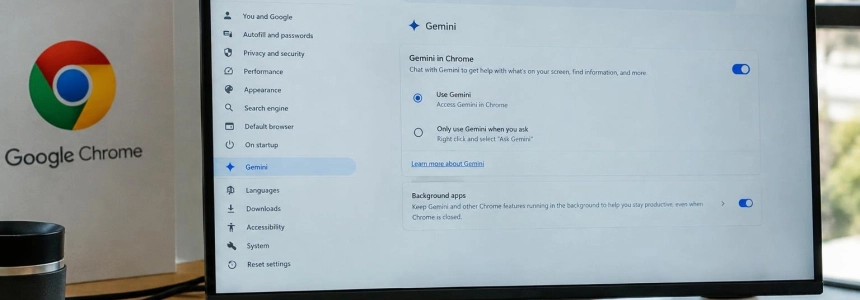
Turn off the default use of the current tab in new chats. In Chrome, open “More” and then “Settings”. In the settings menu, go to “AI innovations” and “Gemini in Chrome”. Under “Permissions”, turn off “Share current tab by default”. Google says the current tab is shared by default when you start a new chat; this change modifies that behavior.
Review the other Gemini options. In the same section, under “Permissions”, you can turn “Precise location”, “Microphone”, “Share current tab by default”, and “Let Gemini browse for you” on or off. Change only the permissions you do not want to grant. For example, turning off access to precise location prevents Gemini from using that exact location, although Google says it may still infer an approximate location from the IP address.
Hide the visible shortcut if you prefer. In “AI innovations” and “Gemini in Chrome”, the “Preferences” section lets you change “Show Gemini at the top of the browser”. On Mac and Windows, there are also options related to the menu bar or system tray and the keyboard shortcut. Hiding or unpinning Gemini affects how it is displayed; Google does not describe it as a solution to memory usage after closing Chrome.
If you have trouble accessing it, Google recommends restarting Chrome and checking that it is up to date. For issues with the side panel or floating chat, it says you can right-click Gemini and select “Reload”. These steps are for resolving Gemini access or functionality issues, not specific instructions for diagnosing memory usage.
Send feedback if a Gemini-related issue persists. At the top of Gemini, select “More”, “Settings & help”, and “Send feedback”; describe what happened and attach a screenshot if you want. Google also lets you rate a response using “Good response” or “Bad response”, but that rating is about the response, not a technical diagnosis of memory usage.
What not to assume
Do not attribute the memory usage to Gemini just because you have used the feature. Google documents that Gemini can access tab content and explains how to change permissions, but does not say that it continues running after Chrome is closed or that it explains persistent memory usage. Turning off “Share current tab by default” limits the default use of the tab in new chats; it is not a confirmed fix for this symptom.
Also, do not confuse hiding or unpinning Gemini with stopping background activity. The options for showing it at the top, in the Mac menu bar, or in the Windows system tray are interface preferences. Google's guide does not attribute any effect on memory usage after closing the browser to these options.
Finally, do not remove permissions at random in the hope of improving memory usage. Location, microphone, and automatic browsing control Gemini's capabilities; the help documentation does not establish that any of them is responsible for the reported usage. The specific check you can make is to review which tabs are shared and whether the option to share the current tab by default is still on.
Source: Google Chrome Help