Updated in November 2026. Since Android 11, WhatsApp no longer keeps voice messages in the old WhatsApp/Media/WhatsApp Audio folder: they live somewhere else, and this guide shows where.
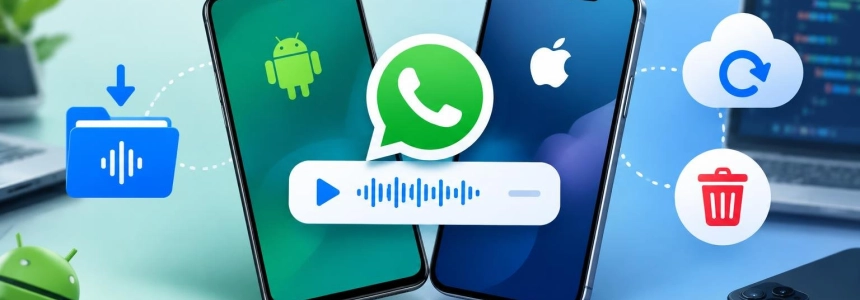
Short answer: on Android, WhatsApp voice messages are in Internal storage > Android > media > com.whatsapp > WhatsApp > Media > WhatsApp Voice Notes. On iPhone there is no folder to open: to save a voice message, open the chat, press and hold it, choose Forward, then the share icon and Save to Files.
Where WhatsApp voice messages are saved on Android
Since 2021, on Android 11 and later, WhatsApp keeps the files you send and receive in this path:
Internal storage/Android/media/com.whatsapp/WhatsApp/Media/
Inside it, audio is split into two folders:
- WhatsApp Voice Notes: voice messages, the ones you record by holding the microphone. They are grouped in subfolders named with a six-digit number (for example 202645): the first four digits are the year and the last two the week. The files have the
.opusextension. - WhatsApp Audio: other audio files, such as songs, recordings or audio notes sent as attachments.
On phones with Android 10 or earlier the folder is still the old one, Internal storage/WhatsApp/Media/. If you use WhatsApp Business, the path changes to Android/media/com.whatsapp.w4b/WhatsApp Business/Media/.
How to open the folder
- Open your phone’s file manager: Files by Google, My Files on Samsung, or your manufacturer’s app.
- Go to Internal storage and then Android > media > com.whatsapp > WhatsApp > Media.
- Open WhatsApp Voice Notes and then the subfolder for the week you are looking for.
If the Android folder shows nothing, the file manager does not have permission to see all files: you can grant it in Settings > Apps > the app’s name > All files access. The files do not carry the sender’s name, so the quickest way to find the right one is to start from the week it arrived and listen to them in date order.
On iPhone: how to save a voice message
On iPhone, WhatsApp keeps audio inside its own app and the Files app cannot see it. To keep a voice message outside WhatsApp:
- open the chat and press and hold the voice message;
- tap Forward, then the share icon in the bottom right corner;
- choose Save to Files and the folder, on your iPhone or in iCloud Drive.
From the same menu you can email it to yourself or open it in another app. If you need every voice message in a conversation, use Export chat (from the contact or group info) with the Attach media option: it creates an archive with the messages and the attachments, audio included.
How to recover a WhatsApp voice message
- You just lost track of it in the chat: in the contact or group info, Media, links and docs collects the attachments of the conversation; on Android you can also look in the WhatsApp Voice Notes folder for the right week.
- You deleted the message: on Android the file sometimes stays in the folder, because deleting the message does not always delete the file. Check there first.
- The file is gone: the only way back is the WhatsApp backup, on Google Drive (Android) or iCloud (iPhone). You restore it by reinstalling WhatsApp with the same number, but it takes your chats back to the moment of the backup: messages that arrived later are lost. Only do it if that voice message is worth it.
Apps that promise to «recover deleted voice messages» without a backup almost always ask for full access to your phone and cannot bring back a file that no longer exists: avoid them.
How to delete voice messages to free up space
The safest way is from WhatsApp itself, which shows how much space each chat takes:
- go to Settings > Storage and data > Manage storage;
- open the chat that takes up the most space;
- select the files to delete (you can sort them by size) and tap the bin.
On Android you can also delete the oldest subfolders of WhatsApp Voice Notes directly from the file manager. In that case the voice messages stay in the chat, but they can no longer be played.
To keep your phone from filling up again, in Settings > Storage and data you can choose which files are downloaded automatically on mobile data and on Wi-Fi.
If you do not have time to listen to them
WhatsApp can transcribe voice messages into text directly on your phone: turn it on in Settings > Chats > Voice message transcripts and choose the language. After that, each voice message shows an option to read it instead of listening to it.