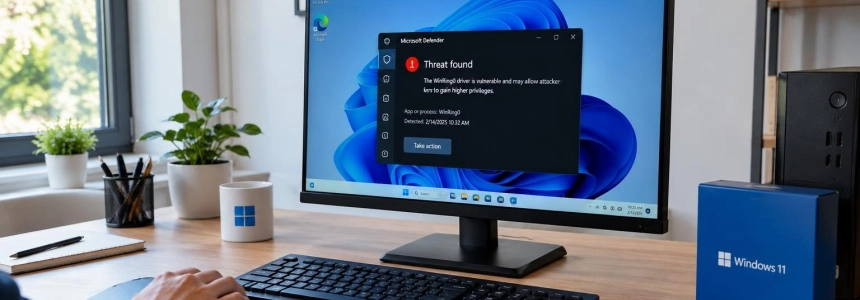
Microsoft Defender may detect WinRing0 as a vulnerable driver, and Microsoft confirms that the alert is valid. Wccftech reports that Windows Update continued to offer version 1.0.0.38 of Intel Performance Driver Extension, linked to a file detected on an 11th-generation Intel NUC, even after the package was removed.
The alert is related to CVE-2020-14979, a vulnerability that may allow an attacker to elevate privileges on a system they already have access to. Microsoft classifies some monitoring and gaming applications as affected, including HWiNFO, FanCtrl, Open Hardware Monitor, OpenRGB, and MSI Afterburner. The detection does not mean that the PC has been breached.
1. Check whether the alert is for WinRing0
Open Microsoft Defender Antivirus and check the exact detection name. The relevant indicator is
VulnerableDriver:WinNT/Winring0. Do not assume that every antivirus alert is related to this case.If Defender identifies the file
OpenHardwareMonitorLib.sys, note that Wccftech links it to Intel Performance Driver Extension 1.0.0.38, part of Intel NUC Software Studio Service. The case described affected an 11th-generation Intel NUC; Microsoft's alert may also appear on Windows 10 and Windows 11.Check whether you use hardware monitoring or control tools. Microsoft lists, among others, CapFrameX, older versions of EVGA Precision X1, Libre Hardware Monitor, OmenMon, SteelSeries Engine, and ZenTimings. The list does not mean that all of them will trigger the alert on every PC.
2. Treat the driver as a real risk, not a false alarm
Do not dismiss the detection as a false positive: Microsoft says WinRing0 is classified as vulnerable. The vulnerability may allow SYSTEM privileges to be obtained, but an attacker must already have access to the system; the alert alone does not confirm that this has happened.
If you have Intel NUC Software Studio Service or the associated component, bear in mind that Intel recommended uninstalling the software or no longer using it. Intel had indicated that the service had reached the end of its security support lifecycle. If you are unsure which component to remove or how to do so on your installation, seek help from Intel or whoever manages the PC before removing drivers manually.
Keep in mind that removing the package may not permanently resolve the problem: in the case described by Wccftech, Windows Update offered the same version again. If it reappears, check the name and version again before taking action; do not install the package just because it appears as an available update.
3. Avoid disabling protection to restore an application
If an application stops working and the alert is blocking it, Microsoft documents a temporary exclusion in Defender, but warns that it may leave your PC or network more exposed and does not recommend it. First consider whether you really need the application and whether you can do without it while you address the vulnerable driver.
If you decide to use the exclusion despite the risk, Microsoft gives this path: Start > Settings > Privacy & security > Windows Security. Open Virus & threat protection; under Virus & threat protection settings, select Manage settings. Then, under Exclusions, click Add or remove exclusions and choose Add an exclusion to select the affected file or folder.
Limit the exclusion to the item you need instead of excluding more files or folders than the application requires. Microsoft warns that this workaround may reduce security.
4. Notify Microsoft if the alert persists
Microsoft lets you submit feedback through Feedback Hub. Find the app using the taskbar search box, select Feedback > Add new feedback, and choose the category Security, privacy, and accounts > Windows Defender Antivirus. Describe the detection and explain that Windows Update is offering the driver again.
Mistakes to avoid
Do not confuse an alert with an intrusion: Defender is flagging a vulnerable driver, not claiming that someone has compromised the PC. At the same time, do not ignore the alert as if it were a false positive: Microsoft confirms that the detection is valid.
Avoid repeatedly installing the driver without checking its identity, and do not turn the exclusion into a permanent solution. Wccftech also notes that a scan of the downloaded package showed no alerts, but it was not reinstalled to check whether the driver was extracted during execution. That result does not prove that the component is safe.
The practical detail to check if the alert returns is the name VulnerableDriver:WinNT/Winring0. Intel recommended no longer using or uninstalling NUC Software Studio Service, and Wccftech reports that Windows Update continued to offer the package.
Sources: Wccftech, Microsoft Support