Windows already includes Task Scheduler, a tool that can run programs or scripts on a schedule or when an event occurs. SmartWorld presents it as an integrated alternative to certain automation applications; Microsoft confirms that it is included in supported versions of Windows.
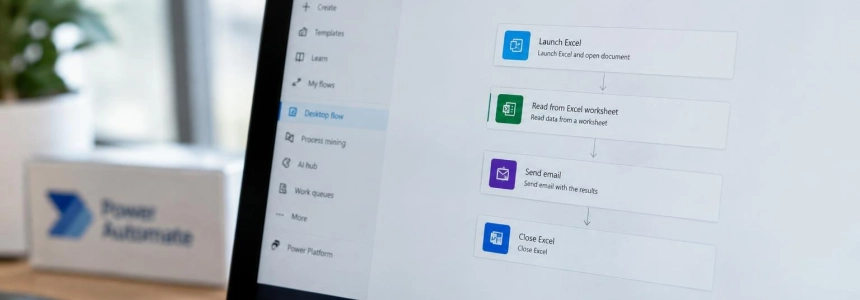
Anyone with a supported version of Windows can use it, although the practical benefits depend on what you want to automate. If you only want to open an application at a specific time, you can schedule it to run; if you need to copy files, update applications, or chain several actions together, you will need to prepare a script to do that work. Task Scheduler coordinates when it runs: it does not provide a visual action builder.
Before automating: choose a specific task
Start with a repetitive task whose results you can review. SmartWorld gives examples such as copying personal files to an external drive using a Robocopy script, updating third-party applications with winget, and periodically cleaning the Downloads folder. These are suggestions, not automations ready to activate: you will need to define and test the right script for your computer.
You can also consider a sign-in routine: opening applications, loading browser profiles with their pages, or starting an SSH session and a Linux virtual machine in VMware. SmartWorld describes this type of sequence using a PowerShell script with pauses between actions to give applications time to load. Do not schedule a routine like this until you have verified each action separately.
Steps to set up an automation
Check that the task can be automated. Write down the result you want and break it into actions: for example, which files to copy or which program to open. If you need to interact with several applications, the logic must be in a script; Task Scheduler does not include a visual editor for building that sequence. Microsoft describes the tool as a service that starts programs when time- or event-based criteria are met.
Prepare the script or program first. Run the program or script you intend to schedule manually and check the result. For a backup, verify that the files are copied to the intended destination; for a startup routine, confirm that each application launches in the expected order. SmartWorld recommends keeping the script separate from the task: this lets you change what it does without reworking when it runs.
Open Task Scheduler. Search for “Task Scheduler” from Start and open the built-in Windows tool. Its appearance is dated and unintuitive, according to SmartWorld, so take your time and review each option before saving.
Choose when it should be triggered. Decide whether the task should run at a specific time or respond to an event, such as system startup, sign-in, or when the computer is idle. Microsoft documents time- and event-based triggers; a task can have one or more. For a morning routine, for example, SmartWorld suggests launching it at sign-in, provided the computer was not shut down overnight.
Specify what the task should run. Select the prepared program or script and check that the action points to the correct item. If the goal is to start a series of applications, keep that sequence in the script rather than splitting it across instructions that will be difficult to maintain later.
Adapt execution to your computer. If the trigger depends on network connectivity, power, or inactivity, verify that those conditions fit your intended use. Microsoft documents network and idle conditions and warns that tasks with short intervals can prevent battery-powered computers from entering low-power states. For periodic maintenance tasks, it recommends avoiding frequent polling and considering event- or idle-based triggers.
Test the task and check its effect. Run a controlled test before letting it operate unsupervised. Confirm the result at the destination: files copied, application opened, or routine completed. If the script makes destructive changes—for example, deleting files—do not schedule it until you are sure it affects only the intended items. SmartWorld notes that a configured task can run in the background, but that does not replace initial verification.
Review the script and schedule when they change. If the action changes, modify the script; if the time or execution condition changes, adjust the task. This separation is one of the advantages SmartWorld attributes to this approach. It is also a simple way to avoid rebuilding the entire automation for a small change.

Mistakes that can turn convenience into a problem
Do not schedule checks every few minutes on a laptop running on battery power. Microsoft warns that frequent polling tasks can prevent the computer from entering low-power states. If the task can be triggered by an event or when the computer is idle, consider those options instead of running constant checks.
Do not assume that creating the task is enough. Task Scheduler runs the program or script you specify, but it does not create the logic for a backup, cleanup, or sequence of applications by itself. SmartWorld notes that anyone who has not written scripts will need to learn that part; it mentions that AI assistants can help draft them, but the result must be tested before it is automated.
Do not copy scripts without understanding their scope. A cleanup or backup task can run repeatedly in the background. Review the paths it uses and the operations it performs before assigning it a schedule. In particular, do not schedule an action that deletes or overwrites data until you have manually checked how it behaves.
The tool launches programs and scripts based on triggers, such as schedules or system events.
A sensible first automation can be as small as opening an application at sign-in. Once it works reliably, you can move on to a periodic backup or a routine involving several programs; if a script is involved, first check what it will do and where it will act.
Sources: SmartWorld, Microsoft Learn, Microsoft Learn, Microsoft Learn, Windows Central