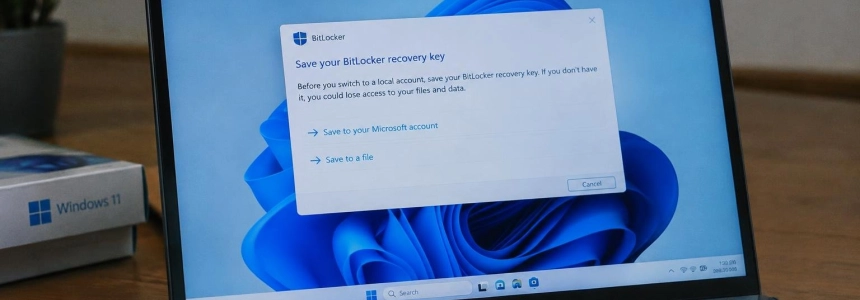
Windows 11 will ask users to save the BitLocker recovery key when they switch from a Microsoft account to a local account in Settings. The prompt is being tested in build 26340.10013, released to the Windows Insider Experimental channel on November 16, 2026, and aims to prevent users from losing access to encrypted files because they do not know where to find that key.
A reminder before leaving your Microsoft account
Microsoft included the feature under the name “Secure switch from MSA to Local account” in the Windows 11 Insider Preview Build 26340.10013 notes. The official description states that anyone who starts the switch in Settings will always be prompted to back up their BitLocker recovery key, along with updated instructions to prevent data loss.
The prompt does not cancel or delay the switch to a local account: it reminds users to save the key before continuing, but does not require confirmation to proceed and does not turn off drive encryption. Microsoft has not published a screenshot of the window, so it is not yet known whether it can be skipped or whether it will also appear on devices without encryption enabled.
The steps for changing the account type remain Settings > Accounts > Your info > Sign in with a local account instead. Windows Latest and SoftZone note that, unless an alternative method is used during initial setup, Windows 11 prompts users to sign in with a Microsoft account before allowing them to switch to a local account later.
The feature does not yet have a general availability date. It is in the Experimental channel, an early stage of Windows Insider testing. Microsoft warns in the build notes that features in these versions may change, be removed, or never be released outside the program. Tutos-Informatique also notes that this prompt is rolling out gradually, so it is not available on every device receiving the build.
The key may remain in the account the user stops using
The reason for the reminder has to do with how device encryption can be enabled. According to Windows Latest, a PC set up with a Microsoft account typically enables encryption silently and saves the associated recovery key to that account. SoftZone adds that many users switch to a local account for privacy without realizing that the drive is still encrypted and that the key may remain saved in the Microsoft account they have stopped using.
BitLocker encrypts the drive to prevent others from reading files if a laptop is lost or stolen. Under normal conditions, the TPM chip unlocks the drive during startup. But changes such as a BIOS update, clearing the TPM, or replacing the motherboard can cause Windows to display the recovery screen and request the 48-digit key.
Windows Latest and SoftZone link the risk to the growing number of automatically encrypted devices. Since Windows 11 24H2, Microsoft has relaxed some hardware requirements for automatic encryption, allowing more devices to be encrypted after a clean installation. Windows Latest also notes that switching to a local account does not delete the Microsoft account or the key stored in it: if users can still sign in to that account from another device, they can retrieve the key there.
Since version 24H2, the recovery screen has also shown a hint about the Microsoft account where the key is stored, according to SoftZone and Windows Latest. But that help is no use if users can no longer access the account and have not kept another copy. SoftZone notes that a Secure Boot certificate update left some devices stuck in recovery loops in early 2026.

What happens if the key cannot be found
Microsoft explains that its support team cannot retrieve or recreate a lost key. If Windows asks for it and users do not have it, the recommended option is to reset the device, an operation that deletes the files on the drive. SoftZone and Windows Latest agree that losing the key can turn what seemed like a routine account change into a loss of access to data.
“Microsoft Support doesn’t have the ability to retrieve, provide, or recreate a lost BitLocker recovery key”
— Microsoft Support
To check the key saved online, users can visit aka.ms/myrecoverykey from another device. Microsoft recommends checking that the backup exists and can be opened before relying on it. If several keys are associated with the account, Tutos-Informatique advises comparing the key ID with the one shown on the recovery screen to locate the one for that device.
The copy in the Microsoft account does not disappear when switching to a local account. However, users making the switch for privacy reasons should be aware that the key will remain on Microsoft’s servers until they delete it there, according to SoftZone and Windows Latest. Therefore, it is a good idea to have another accessible copy before deleting the online backup.
Check encryption and save a copy outside the PC
The first step is to check whether the device is encrypted. In Windows, the path is Settings > Privacy & security > Device encryption. If encryption is enabled, the recovery key may be needed if Windows stops unlocking the drive automatically.
Next, check the copy associated with the Microsoft account at aka.ms/myrecoverykey and confirm that it can be accessed. In the Pro, Enterprise, and Education editions, users can also search for “Manage BitLocker” in Start and save the key to a USB drive, a file, or a printout. Tutos-Informatique notes that the full BitLocker panel is not available in Windows 11 Home; in that edition, users can copy the key from the Microsoft page and save it somewhere else.
SoftZone recommends keeping the copy away from the computer, and Windows Latest also warns against storing it alongside the PC. The location matters especially if the device stops booting or is lost along with the copy. If the switch to a local account is motivated by privacy concerns, users can save an alternative copy before deleting the key from their Microsoft account.
The build also includes other security changes
The account prompt is part of a build that includes other security features. Microsoft added a dedicated Security page in Settings and began rolling out Windows baseline protection, a space that shows whether the device meets a security baseline maintained by the company. The rollout is gradual, and the new page brings together links to device protection, encryption, virus and threat protection, and other related settings.
The build notes also include Remote Lock, which lets IT administrators lock a lost, stolen, or compromised Windows device from Microsoft Intune without erasing it. In addition, standard users of managed devices can configure a BitLocker pre-boot PIN when the policies specified by Microsoft are applied. Windows Latest mentions these updates when describing the version’s security focus.
For now, the reminder to save the key remains a test: Microsoft has not announced when it will reach all users, and the Windows Insider notes leave open the possibility that it may change or never be released. Meanwhile, switching to a local account remains available in Settings; preserving the recovery key and being able to find it when Windows asks for it may determine whether users can access their files in the future.
Sources: SoftZone, Windows Latest, Microsoft Learn, Tutos-Informatique