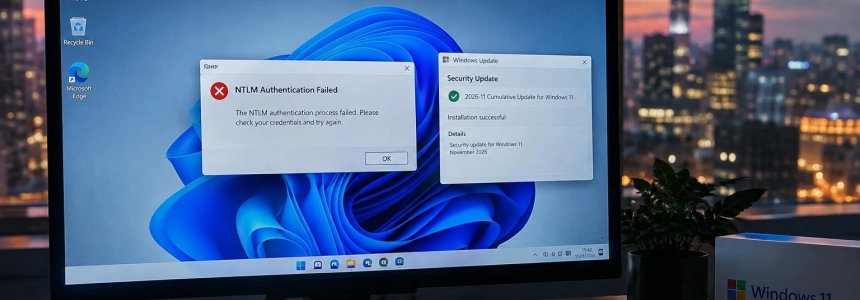
Windows security updates released since November 10, 2026 may prevent NTLM authentication on some devices and third-party applications. Microsoft confirmed the issue in its KB5135557 note: it particularly affects authentication proxies, single sign-on (SSO) solutions, and application packaging tools that do not correctly implement the protocol.
The Windows change is part of the first phase of strengthening NTLM message signing to address the CVE-2026-118737 vulnerability, which affects Windows Remote Procedure Call Runtime. In an authenticated session, Windows starts offering NTLM signing by default; some intermediaries that send incomplete information during negotiation may stop working.
IlSoftware.it identifies Windows 11 23H2, 24H2, 25H2, 26H1, and 26H2, Windows 10 Enterprise LTSC 2021, and Windows Server 2016, 2019, 2022, and 2025 as potentially affected systems. Simply having one of these versions is not enough to trigger the issue: the described problem occurs in workflows that use NTLM through an incompatible product.
| Systems cited as potentially affected | Versions |
|---|---|
| Windows 11 | 23H2, 24H2, 25H2, 26H1, and 26H2 |
| Windows 10 | Enterprise LTSC 2021 |
| Windows Server | 2016, 2019, 2022, and 2025 |
1. Confirm that the issue is related to NTLM
Start by identifying which resource stopped accepting the sign-in and whether the connection involves an authentication proxy, an SSO system, or an application packaging solution. Microsoft has not published a definitive list of affected vendors or products; therefore, link the failure to an application or device that uses NTLM before changing Windows settings.
Microsoft describes two signs that can help with troubleshooting. In a network capture, the NTLMSSP_CHALLENGE message may contain an empty Target Info List. In the event log, event 4021 may show Not Found in the target machine or domain fields.
2. Check the event log and, if appropriate, a trace
On computers where advanced NTLM logging is available, open Event Viewer using eventvwr.msc and check Microsoft-Windows-NTLM/Operational, under Applications and Services Logs. IlSoftware.it notes that event 4021 and Not Found values in Target Machine or Target Domain may indicate an incompatibility.
Advanced logging is enabled by default in Windows 11 24H2 and later, and in Windows Server 2025; for Windows Server 2019 and 2022, IlSoftware.it says the October 2026 updates are required. If it is disabled, that publication explains that you can enable it using Group Policy Editor: run gpedit.msc and go to Computer Configuration > Administrative Templates > System > NTLM; there, enable the NTLM Enhanced Logging policy.
If the support team needs to inspect the exchange, Microsoft recommends capturing network traffic and reviewing the NTLMSSP_CHALLENGE message. An empty target information list is consistent with the issue, but no single sign confirms the cause; compare it with the failed sign-in and the intermediary device involved.
3. Apply the registry change only to the affected client
Microsoft recommends setting ClientAllowUnsignedNtlm to 1 as a temporary workaround on the affected client. The setting allows the client not to offer NTLM signing and restores compatibility with the previous behavior, but it reduces the protection included in the updates. Do not deploy it to all computers as a general policy.
To apply it, open Command Prompt as an administrator and run:
reg add "HKLM\SYSTEM\CurrentControlSet\Control\Lsa\MSV1_0" /v ClientAllowUnsignedNtlm /t REG_DWORD /d 1 /fThen try accessing the resource again. IlSoftware.it recommends closing and reopening the affected application to start a new authentication session. If the issue persists, do not assume the registry setting is the cause or extend the change to other systems: review the diagnosis with the team that manages the proxy or application.
4. Plan the lasting fix with the vendor
Check whether the affected product supports Kerberos authentication and whether the vendor offers a software or firmware update that meets NTLM signing requirements. Microsoft recommends these options as long-term resolutions. If neither is available, ask the vendor to adapt the product to section 3.1.5.1.2 of the NTLM specification, concerning receipt of a CHALLENGE_MESSAGE message.
Updating the affected product or using a compatible authentication configuration is the recommended long-term resolution.
— Microsoft
Once the product is compatible or the connection uses a supported configuration, remove the exception and restore the default behavior. IlSoftware.it provides this command to set the value to 0 from a console with administrator permissions:
reg add "HKLM\SYSTEM\CurrentControlSet\Control\Lsa\MSV1_0" /v ClientAllowUnsignedNtlm /t REG_DWORD /d 0 /fMistakes to avoid
Do not uninstall the patch as your first response: Microsoft documents the registry workaround without requiring removal of the November cumulative updates. Also, do not change settings before verifying that the case involves NTLM and one of the signs described above.
Do not leave the option that allows unsigned sessions enabled indefinitely, and do not apply it across the entire network. Microsoft warns that it is temporary and that the value may be removed in the future; its own guidance also places the second phase in May 2027, when Windows servers will start requiring NTLM signing by default and reject clients that do not offer it.
Finally, do not confuse this incident with other issues in the November update cycle. SoftZone mentions activation failures, SQL Server performance, and printing complex documents as separate incidents; the ClientAllowUnsignedNtlm change is intended for the NTLM authentication issue.
Sources: SoftZone, IlSoftware.it, BleepingComputer, Microsoft Support