In January 2027, Gmail will stop importing messages from external accounts via POP and allowing users to send from email addresses not hosted by Google. The change mainly affects people who bring multiple accounts together in Gmail on the web or reply from there using a work address; Google accounts and access to external accounts through the mobile app will remain available.
Check whether you use the affected features
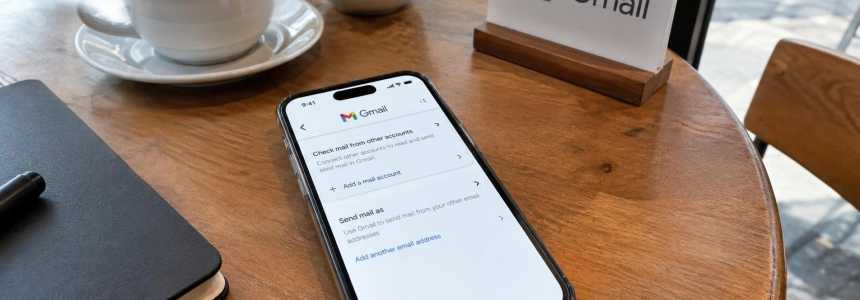
In Gmail on a computer, open Settings > See all settings > Accounts and Import. If “Check mail from other accounts” shows an external address, Gmail is fetching its messages via POP. The removal of “Send mail as” also affects you if you send from Gmail on the web or its mobile apps using an address hosted outside Google.
Don’t confuse this with using another app to read Gmail. Google will continue to support POP and IMAP for external clients such as Outlook, Thunderbird, or Apple Mail when they access a Gmail account. Access to Gmail through its API will also remain available. The removal applies to Gmail features that bring in third-party accounts, not to these uses of Gmail from other tools.
Addresses hosted by Google are not affected: you can continue using “Send mail as” with other Gmail accounts and Google Workspace aliases. External messages that have already been imported will remain in your inbox; what ends is future synchronization via POP and sending from those external addresses.
Dates to keep in mind
| Date | What changes |
|---|---|
| Q3 2026 | Google begins notifying users about “Send mail as” and alerts affected users within the product. |
| Q3–Q4 2026 | Transition period: the features continue to work, although Google may limit new configurations. |
| January 2027 | Gmail removes “Send mail as” for external accounts, Gmailify, and checking mail via POP. |
Google also says that you will no longer be able to add or sync an external account in Gmail on the web once the change takes effect. The Gmail app for Android, iPhone, and iPad will retain access to third-party accounts. If you used Gmailify, you will also lose the associated features for those accounts, such as Gmail’s spam protection and category organization.
What to do before January
Make an inventory of your external addresses. Check “Accounts and Import” and note which accounts appear under “Check mail from other accounts” and which are listed under “Send mail as.” Include shared work addresses: a support inbox handled by several people from one Gmail account may need a different plan from a personal account.
Choose how to receive new messages. To keep them appearing in Gmail, Google suggests setting up automatic forwarding from the provider hosting the account. The steps and options depend on the provider; check its documentation to see whether it offers forwarding. Google warns that this alternative is not available with every service. Another option is to add the external account to the Gmail mobile app, which will continue connecting to it.
Test forwarding before relying on it. Turn it on with the service hosting the address and send a test email. Check that it reaches the intended inbox and doesn’t end up in another folder. If it’s a shared address, review who will receive those messages: forwarding everything to one account could leave conversations in one person’s hands.
Decide where you’ll reply from. Forwarding only handles incoming messages; it does not preserve the ability to reply from Gmail using the external address. To send messages, Google recommends using the provider’s website or app, or a desktop client connected to that account via IMAP/SMTP. Set up the account following the provider’s instructions and send a test message to verify that the reply comes from the correct address.
If several people handle an address, agree on where replies will be managed and who will have access. Google suggests using a shared mailbox from the provider, a customer service platform, or the chat tool the team already uses. Don’t assume that forwarding to a single inbox will replicate the shared workflow you had in Gmail.
Keep using the mobile app if it works for you. Google confirms that you’ll still be able to add and use external accounts in Gmail for Android, iPhone, and iPad. You can also use a dedicated email app or a desktop client. Keep in mind that mobile access is not the same as continuing to import the account into Gmail on the web.
Remove the POP setup once you’re ready. After confirming that mail is arriving through your chosen alternative, remove the POP account from Gmail so you’re no longer relying on a feature that will be discontinued. Keep the messages that have already been imported: they won’t be deleted as a result of this change.
Mistakes that could leave you unable to reply properly
Don’t confuse receiving with sending. Automatic forwarding can send new messages to Gmail, but it won’t let you reply from Gmail using the external address. To keep that identity when replying, use the provider’s service or a client configured to send from that account.
Don’t delete the account before testing your alternative for receiving and sending. Check each separately: make sure an incoming message reaches the new destination and that a reply is sent from the address you want to use. If the provider doesn’t offer forwarding, choose another method rather than assuming the option will be available.
Also avoid third-party services or extensions that promise to replicate “Send mail as” without checking what access they require. Google warns that some tools may ask for email credentials or OAuth tokens, which poses privacy and security risks; it does not guarantee their practices or reliability.
Finally, don’t delete messages that have already been imported for fear they’ll disappear in January: Google confirms they will remain in Gmail. What you should sort out before then is how to receive future messages and where to reply to external accounts from.
Sources: DEV Community, Google Gmail Help, Google Gmail Help, Google Gmail Help, WIRED