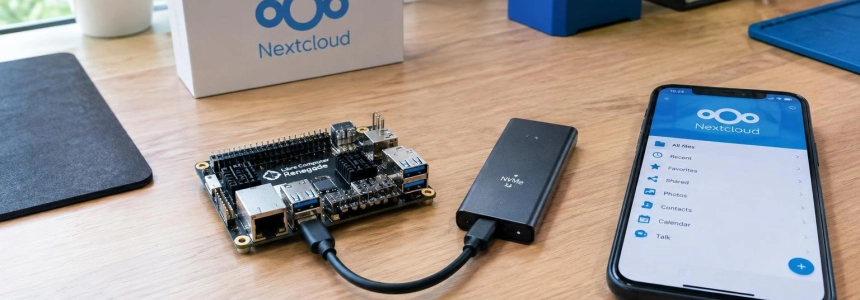
A Libre Computer Renegade with 4 GB of RAM can run Nextcloud for file sharing and collaboration tools, according to XDA’s experience. The setup described boots from an NVMe connected via USB and leaves the microSD card for the bootloader: an alternative to relying on Google Drive, whose free plan includes 15 GB shared across documents, email, and photos.
The setup has one practical caveat: you need to spend time preparing the boot process and accept that Nextcloud AIO manages several containers, not a single isolated application. The walkthrough below follows that approach and adds a memory check so you can observe the machine before adding components.
1. Prepare the drive and boot process
In the setup described by XDA, the microSD card is flashed with Libre Computer’s bootloader creator. When powered on, the bootloader hands control to another device, such as an NVMe inside a USB adapter. The microSD card is written to during setup and then read at boot; normal system activity takes place on the NVMe.
The Renegade offers Gigabit Ethernet and several USB ports. Before installing the system, connect the NVMe and check which drives Linux detects. This command only shows disks and their mount points; it does not modify anything:
# Lista unidades, tamaños, tipos y puntos de montaje.
lsblk -o NAME,SIZE,TYPE,FSTYPE,MOUNTPOINTS
The installation described uses an aarch64 Linux image and OpenMandriva, with the NVMe as the target. The author had to test which USB port the bootloader recognized, so it’s worth confirming the boot device on your board before installing. Don’t choose a disk by its name without verifying it: the output of lsblk lets you check its size and mount points.
2. Start Nextcloud AIO with Docker
Nextcloud All In One organizes the required services through a main container, the mastercontainer. When started, it coordinates the installation of other containers; the default services listed by XDA include Apache and Caddy, PostgreSQL, Nextcloud, Client Push, Redis, and Nextcloud Office.
With Docker already installed on the server’s Linux system, you can start the mastercontainer with this command. It publishes AIO’s access ports and keeps its configuration in a Docker volume:
# Inicia el contenedor coordinador de Nextcloud AIO.
docker run --init --sig-proxy=false --name nextcloud-aio-mastercontainer \
  --restart always \
  --publish 80:80 \
  --publish 8080:8080 \
  --publish 8443:8443 \
  --volume nextcloud_aio_mastercontainer:/mnt/docker-aio-config \
  --volume /var/run/docker.sock:/var/run/docker.sock:ro \
  ghcr.io/nextcloud-releases/all-in-one:latest
Once startup is complete, AIO generates a security phrase that you should save so you can access its interface again. Make sure you’ve written it down before continuing with the installation. The main container installs the remaining services after you confirm.
# Comprueba que Docker ve el mastercontainer en ejecución.
docker ps --filter name=nextcloud-aio-mastercontainer
The diagram summarizes the setup’s flow: the microSD bootloader hands off to the NVMe; Docker runs AIO, which coordinates Nextcloud’s services.
flowchart TD
  A["microSD: bootloader"] --> B["NVMe: Linux"]
  B --> C["Docker"]
  C --> D["AIO mastercontainer"]
  D --> E["Nextcloud services"]
3. Choose an office suite
During AIO setup, you need to decide which office suite to install. XDA points to two options: Euro-Office or Collabora Online. The author uses Collabora; the publication says Euro-Office offers better compatibility with Microsoft’s OOXML format. Choose based on the documents you plan to edit.
Start with the default services and monitor resource usage before adding more. The system described by XDA also runs Nextcloud Talk, Imaginary, and Nextcloud Whiteboard, but these containers add to the load. Check memory and CPU first; the tutorial doesn’t assume that all boards with 4 GB will behave the same way.
4. Monitor memory while it’s running
This small Python script reads /proc/meminfo, available on Linux, and calculates used memory from MemTotal and MemAvailable. It doesn’t change the configuration or install packages. Save it as memoria.py and run it on the server:
#!/usr/bin/env python3
# Muestra la memoria usada y disponible en Linux.

def leer_memoria():
    valores = {}
    with open("/proc/meminfo", "r", encoding="utf-8") as archivo:
        for linea in archivo:
            nombre, dato = linea.split(":", 1)
            valores[nombre] = int(dato.strip().split()[0])
    total = valores["MemTotal"]
    disponible = valores["MemAvailable"]
    usada = total - disponible
    return total, usada, disponible


total, usada, disponible = leer_memoria()
print(f"Total:      {total / 1024:.0f} MiB")
print(f"En uso:     {usada / 1024:.0f} MiB")
print(f"Disponible: {disponible / 1024:.0f} MiB")
To save and run the script, use these commands from the directory where you created the file:
# Ejecuta la comprobación de memoria.
python3 memoria.py
Compare the output when idle with what you get while syncing files or using the installed applications. This lets you decide, based on your own machine’s data, whether to add services. You can also check each container’s usage with Docker:
# Muestra en directo el uso de CPU y memoria de los contenedores.
docker stats
5. Schedule backups and understand the downtime
AIO includes a backup container based on BorgBackup. You can create manual or scheduled backups and restore them from its interface. There’s one specific consequence to keep in mind: during a backup, the other containers are stopped, so Nextcloud is unavailable while it runs.
The system can also grow beyond files and document editing. XDA lists Deck for Kanban boards, Notes with companion apps for iOS and Android, Talk for chat and video calls, and a calendar. Add only what you plan to use, and check resource usage again.
Before you call it done
Replacing a service isn’t just a matter of installing an application: the drive, bootloader, and storage need to start up reliably together. In this setup, the repurposed NVMe was connected through a USB adapter, while the microSD card was reserved for booting. Check the USB boot port and save AIO’s security phrase.
Available space is limited by the drive you connect; the XDA setup moved from a 256 GB NVMe to a 2 TB one to expand capacity. Before enabling additional services, check memory and CPU, and remember that AIO backups temporarily interrupt the service. The result is a Nextcloud instance under your control, hosted on a 4 GB board.