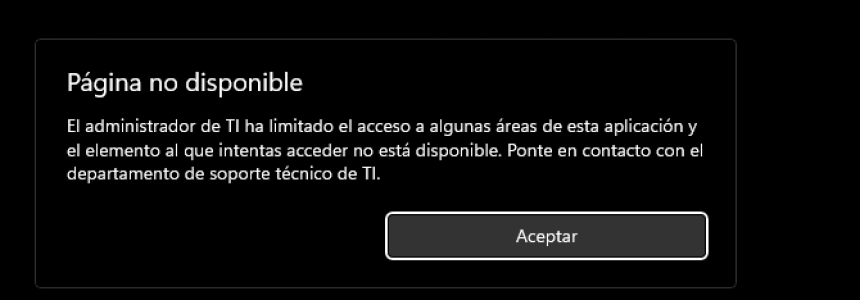
Have you upgraded to Windows 11 and now, when you try to open Windows Defender from Settings > Windows Security > Virus & threat protection, you get this message? "Your IT administrator has limited access to some areas of this app, and the item you tried to access is not available."
Or even worse, a black screen?
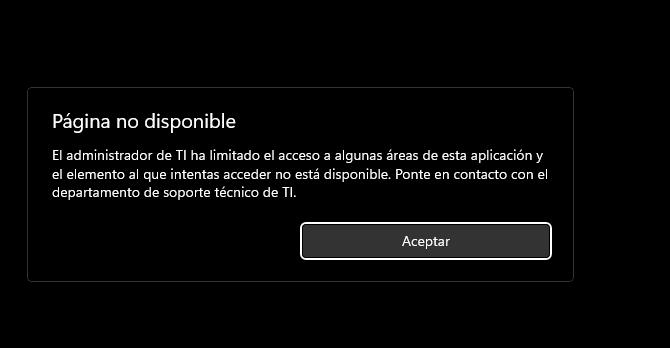
This can happen after updating a program, after updating Windows itself, or after formatting your computer.
Unfortunately, some updates delete important Windows Defender files.
You can check this in the following folder: C:/Windows/System32/SecurityHealth.
If you try to modify or copy a file in this folder, the system won't let you.
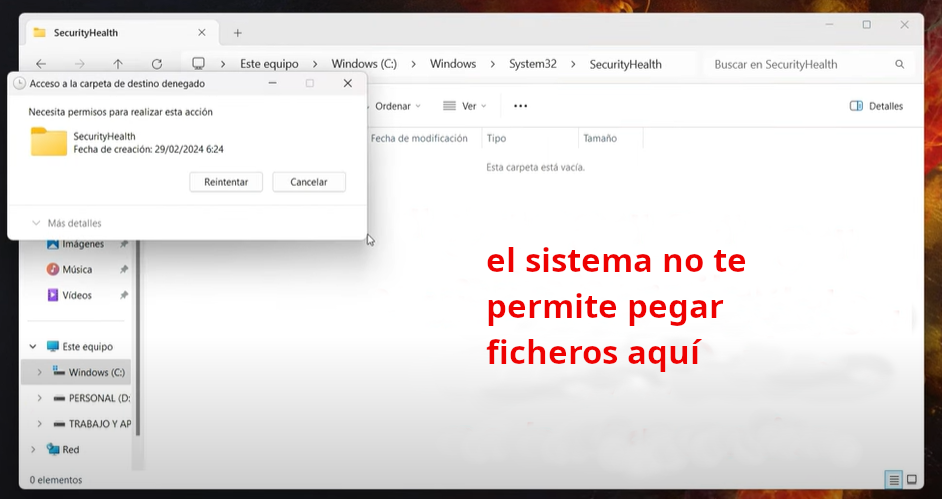
It won't let you bring in files from another computer or an external drive either, right?
To solve the problem, you need to download the file below:
FILE TO RESTORE WINDOWS DEFENDER
Once downloaded, unzip it. Don't try to paste it into C:/Windows/System32/SecurityHealth, because the system won't let you.
Here is what to do next:
Right-click the downloaded file.
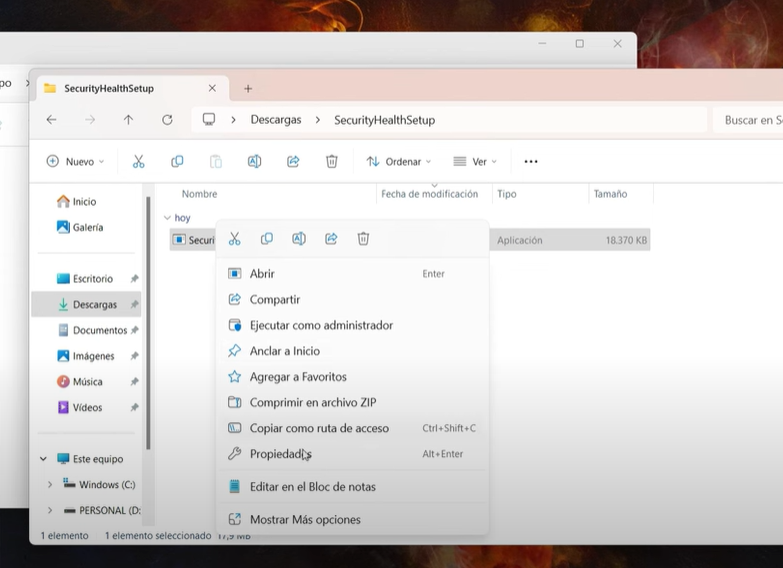
In the menu,
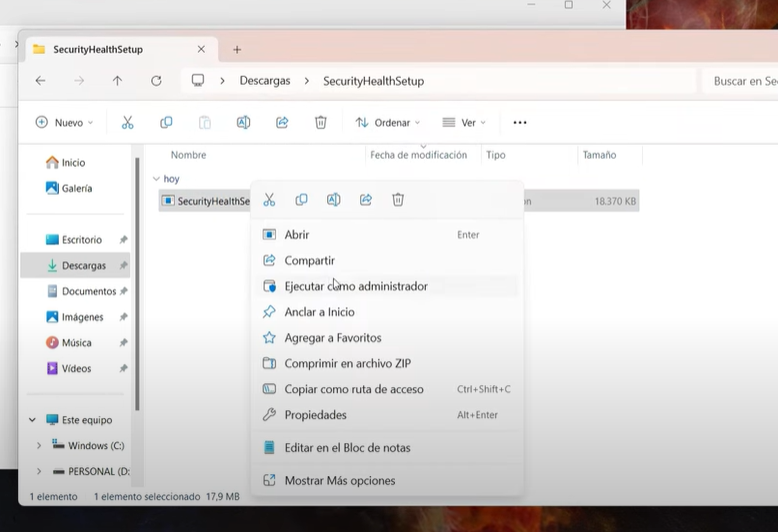
From the same menu, select "Run as administrator".
You will see that the missing files appear in the Windows Defender folder (C:/Windows/System32/SecurityHealth).
Now restart your computer and try opening Windows Defender again ;-)