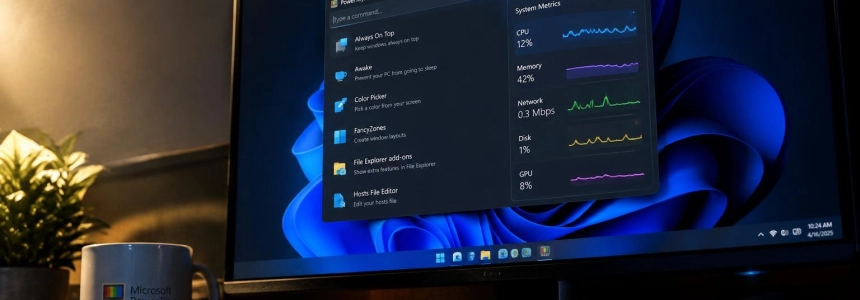
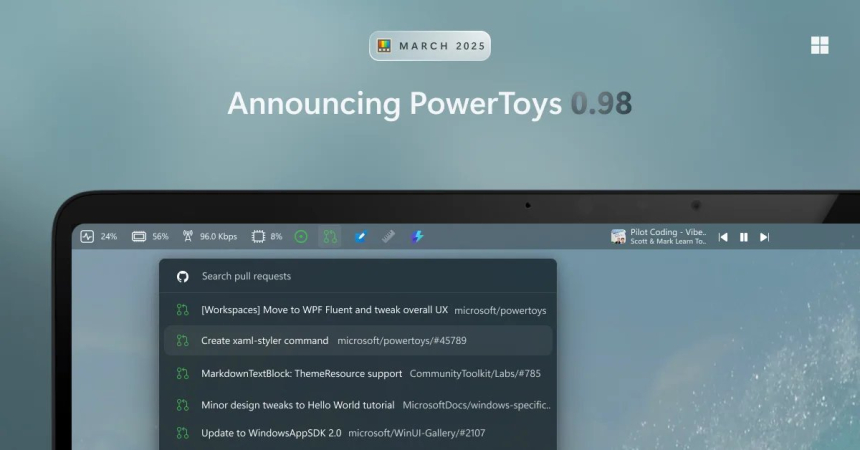
CPU, memory, network, disk, GPU, and battery: Command Palette, a Microsoft PowerToys utility, lets you check these system metrics and display some of them in the Dock as separate bands. The capability appears in Microsoft Learn documentation; the PowerToys 0.98 release notes, published on March 17, focused on the Dock and improvements to other tools, but did not announce the monitor as a new feature in that version.
A metrics panel inside Command Palette
Microsoft Learn documentation describes Command Palette as an access point for checking system performance, as well as opening apps, running commands, searching for files, and accessing Windows tools. Its features section lists CPU, memory, and network usage, network speed, disk usage, GPU, and battery.
Users can pin individual metrics to the Dock to view them as separate bands, instead of opening the palette each time. The documentation describes the Dock as a persistent bar at the edge of the screen: it provides one-click access to commands and extensions, and can remain visible or stay hidden until the pointer approaches its edge.
To open Command Palette, Microsoft specifies the Win+Alt+Space shortcut. The utility must be enabled and running in the background; it is enabled in PowerToys settings, while the shortcut can be changed in Command Palette settings.
The Dock arrived with PowerToys 0.98
Microsoft introduced the Command Palette Dock in preview with PowerToys 0.98, whose availability it announced on March 17, 2026. It is an optional mode that keeps favorite commands and extensions within reach without requiring users to open the full palette. Users can place it along the top, bottom, left, or right edge of the screen and adjust its appearance.
Dock settings let users enable it and change its position and appearance. Microsoft said some items are pinned by default; to add others, find a command in Command Palette and choose “Pin to Dock” from the context or action menu. Pinned items can be reordered or removed from “Edit Dock” using drag and drop.
Microsoft Learn documentation adds that, on computers with multiple displays, each monitor has its own Dock and its own pinned bands. Users can also keep it always visible or have it hide automatically until they approach the corresponding edge.
PCWorld described the Dock as the main new feature in the March update and noted that it can be pinned to any side of the screen. It also reported that Command Palette gained transparency options and speed improvements. Microsoft attributed the latter to changes in caching, interface responsiveness, and other optimizations, and also mentioned bug fixes and new settings.
Keyboard Manager brings its editing features together in one view
Version 0.98 also included a new Keyboard Manager interface, rebuilt with WinUI 3. Microsoft explained that the change was intended to make maintenance and future improvements easier, and that it responded to feedback about the editing experience. The new view brings individual key and shortcut remapping together in a single window, instead of splitting it between two.
A dialog lets users create remappings to change keys or shortcuts, send text, or open an app or URL. There are also individual toggles to enable or disable a remapping without deleting the entry. The new interface can be enabled from Settings; existing remappings should be preserved and continue to work.
The refreshed editor is in preview, and Microsoft kept both editing systems while working on the new experience. The update also lets users enable or disable Keyboard Manager using a shortcut or its command in Command Palette, and adds support for multiline text when sending it from the tool.
CursorWrap improves with multiple displays
CursorWrap received changes designed for multi-monitor setups. Microsoft rewrote the cursor movement engine to better support complex layouts, based on community feedback. PCWorld noted that the tool, introduced in January, can also automatically disable itself when only one monitor is connected.
Another option lets the cursor cross screen edges only while the Ctrl or Shift key is held down. This makes it possible to enable the behavior temporarily instead of having it always available. Microsoft’s release notes present these settings as CursorWrap improvements for this version.
More changes and the next development focus
Among the other changes in PowerToys 0.98, ZoomIt introduced a video editor for trimming screen recordings. Awake received fixes and reliability improvements; New+ added an option to hide the built-in “New” item in the Windows context menu, and Advanced Paste added automatic copying for custom action shortcuts and improvements for Foundry Local.
Microsoft said the update could be obtained by checking for updates from PowerToys or visiting the release page. The post also thanked community contributors, including @weikequ for Keyboard Manager and @mikehall-ms for CursorWrap. In the comments, Niels Laute responded to a question about the Dock and said that updating to 0.98 should provide a setting to enable it in Command Palette Settings.
For the next update, the team announced a broad round of stability work and bug fixes, with performance and stability improvements. Microsoft invited users to submit bug reports, feature proposals, and contributions to the PowerToys repository; the post did not specify a date for the next release.
Sources: Windows Command Line, PCWorld, Microsoft Learn