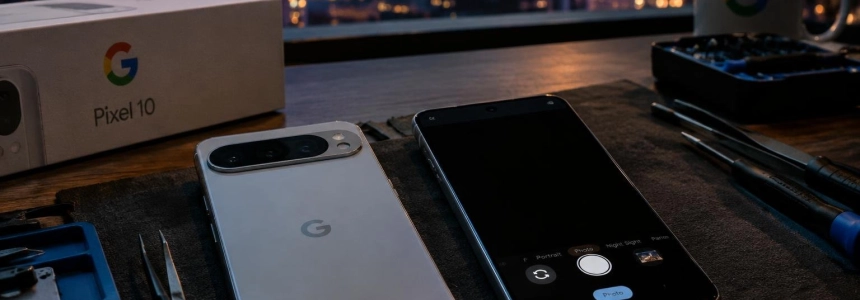
After installing Android 17 QPR2, some Pixel 10 and Pixel 11 users have found that their camera shows a black preview and won’t take photos or record video. In some cases, the app displays the message “Something went wrong. Close and open the Camera app again”; other users have also described failures with third-party camera apps.
To see whether this issue matches yours, focus especially on when the problem started: reports link the failure to the November update based on Android 17 QPR2. The models covered are not identical across all reports: Pixel 10 and Pixel 11 are mentioned, with specific cases involving the Pixel 11 Pro and Pixel 11 Pro XL.
What to try if the camera stopped working
Confirm the symptoms before changing anything. Open the camera and check whether the preview is black or the app displays the error message quoted above. If the issue also occurs when using a third-party camera app, make a note of that: some users have reported this behavior, although it does not by itself identify which component is causing it.
Power off the phone completely. Don’t just close the app: use the device’s own power-off option and wait before turning it back on. The reported wait times vary. Hardware Upgrade reports a recommendation of about five minutes, while Android Police describes another recommendation of one or two minutes shared by a Google community moderator.
If you want to try the procedure, leave the phone powered off for five minutes and then turn it back on. This is the longer of the two published recommendations; it does not guarantee that the camera will work again. There are reports of Pixel 11 phones recovering after a restart, but not all users have had the same result.
Check the camera after restarting. Open the app and see whether the preview returns and whether you can take a photo or start recording. If it still fails, also try the third-party app you had already used, if that was one of your symptoms. Distinguishing between a full recovery and a persistent failure will help you describe the problem accurately.
If nothing changes, stop there. The following measures have not worked in several reported cases. Clearing the cache, uninstalling the update, and using safe mode did not resolve the issue for those users; a factory reset also failed in some cases.
So don’t chain these procedures together as if they were a proven fix. In particular, a factory reset is a drastic measure and has not been a reliable fix for this problem.
Report the issue with its details. If powering off doesn’t work, report that the problem appeared after Android 17 QPR2 and include the model, what the screen shows, and whether other apps are affected too. Camera reports have been gathered in the Google community forums and on Reddit; describing the specific symptoms helps distinguish this issue from an isolated app failure.
What’s known and what remains unresolved
The fact that some users see the same problem in different apps has led to suggestions that the failure could be at a lower level than the camera app, such as the driver or firmware. Google has not confirmed this cause, so it should be treated as a possibility, not a definitive diagnosis.
No date has been announced for an official fix either. Powering off and waiting is currently a temporary workaround reported by users, not a guaranteed solution for every affected Pixel. If it doesn’t work, there is no other confirmed procedure for restoring the camera.
The update has also been associated with other issues: reports of wireless charging and Desktop Mode failures, as well as problems reported on the Pixel 9 Pro Fold and Pixel 10 Pro. These reports should not be confused with the camera failure: different symptoms are described for screen, shortcut, or lock screen customization issues, and no effective fix has been reported.
Mistakes to avoid
Don’t assume it’s just the app. If third-party apps are also failing, reinstalling or only closing the camera app may not address the problem described.
Don’t reset your phone as a first resort. Some users did so without restoring the camera. In addition, the sources do not present it as a necessary step or a confirmed fix.
Don’t mistake user reports for an official fix. Powering off temporarily worked for some, but the reported results do not justify promising that it will work on every device.
Don’t attribute every failure to the camera. Desktop Mode, wireless charging, and foldable screen issues have been reported separately; identify the specific symptom before applying steps intended for the camera.
If the phone still shows a black screen after powering it off and waiting, the practical takeaway is clear: there is no confirmed official fix, and the additional measures described by users have not resolved the problem consistently.
Sources: Hardware Upgrade, Android Police