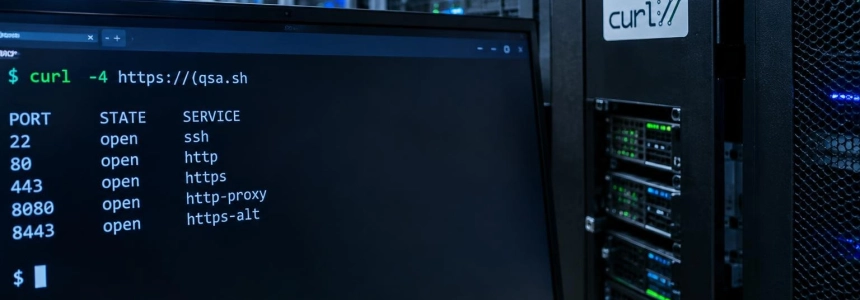
A firewall rule describes what should be allowed; a connection from outside checks what actually responds. On a server with a public IPv4 address, you can start this check with curl -4 https://qsa.sh: qsa.sh detects the source IP of the request and scans that address from its own infrastructure.
The free scan covers the top 1,000 TCP ports, identifies services and versions on open ports, and runs vulnerability checks. It does not install an agent or require installing tools on the server. The result is an initial view of your exposure, not a full audit: compare its findings with your network rules and with what the server is listening on locally.
1. Run the command from the server
Connect to the machine you want to check and run:
# Fuerza IPv4 para que qsa.sh acepte la conexión
curl -4 https://qsa.sh
The -4 option forces IPv4. It is required if the server also has IPv6: qsa.sh currently rejects connections originating from IPv6. The https:// prefix encrypts the request; the HTTP variant also works, but this tutorial uses HTTPS.
Before sending packets, the tool displays the detected IP and starts a 15-second countdown to cancel. Check that the address corresponds to the source you intend to check. If it is not correct, or you are not authorized to scan it, press Ctrl-C: the scan will not start.
The process is straightforward: the request leaves the server, qsa.sh identifies its public IP, and its scanning nodes test that address from the outside. The results are returned to the terminal. You do not need to enter a destination IP: the address from which the request arrives is scanned.
flowchart LR
    A["Servidor"] --> B["Petición curl por IPv4"]
    B --> C["qsa.sh detecta la IP"]
    C --> D["Cuenta atrás de 15 segundos"]
    D --> E["Escaneo externo autorizado"]
    E --> F["Resultados en la terminal"]
2. Save a readable copy of the result
The default output may include colors. To save it to a text file, request output without color and pipe it to tee:
# Guarda la salida en un archivo fechado y también la muestra en pantalla
curl -4 -sN "https://qsa.sh/?nocolor=1" | tee "exposure-$(date +%F).txt"
-sN enables curl's silent mode and disables output buffering, so streamed results can be displayed as they arrive. The nocolor=1 parameter prevents color codes from appearing in the file. The qsa.sh documentation says that results from the free scan are streamed and not stored on its systems; this command creates a local copy under your control.
3. Understand what the scan covers
The free output includes three types of results. First, it lists the TCP ports that accepted a connection from the scanning network. Next, nmap attempts to identify the service and its version, and the vulners script searches for matches against known CVEs based on that version string. Finally, nuclei checks for exposures and configurations, such as .env or .git paths, default credentials, and TLS issues.
There are two limitations to keep in mind when reading the results. The free scan tests the top 1,000 TCP ports, not all 65,535; a service on a port outside that selection will not appear for that reason. And a CVE match based on the detected version is a lead to verify, not confirmation that the installed package is vulnerable: check the fixed version in your distribution's security advisory before planning an update.
The tool displays the ports, detected versions, a severity breakdown, and the three most significant findings in full. If you need to cover all ports, qsa.sh offers paid options with different coverage; they are not needed for this tutorial's initial check.
4. Compare the results with local sockets
On the server itself, run ss to view TCP sockets in listening state:
# Muestra sockets TCP en escucha y el proceso asociado
sudo ss -tlnp
The local list and the external scan answer different questions. ss shows what is listening on the machine; the scan shows which TCP ports accepted connections from qsa.sh's external network. A socket bound to 0.0.0.0, [::], or * listens on all interfaces, but network and host rules determine whether traffic can reach it from outside.
Flag each open port you did not expect to expose and check which service is using it. If a provider rule seems to allow or block it differently, also check where it is applied and what other rules affect the resource. For example, in AWS, the rules of associated security groups are aggregated; an old rule that allows the port may still apply while that group remains associated.
5. Repeat the check from another machine if needed
qsa.sh scans only the IP address from which it receives the request. It cannot be used to specify another address, check a load balancer separately, or test a server's IPv6 address. For those cases, the qsa.sh article suggests running the open-source tools from a machine outside the server's network and scanning only addresses you are authorized to test.
On Debian or Ubuntu, install the listed dependencies and tools:
# Instala nmap y la dependencia libpcap
sudo apt install -y nmap libpcap-dev

# Instala naabu y nuclei con Go
 go install -v github.com/projectdiscovery/naabu/v2/cmd/naabu@latest
go install -v github.com/projectdiscovery/nuclei/v3/cmd/nuclei@latest

# Actualiza las plantillas de nuclei
nuclei -update-templates
The Go installation command assumes that Go is available and that the installed binaries are in your PATH. In the block above, remove the leading space before go install if your terminal interprets it as part of the command.
From that external machine, replace the example address with the public IPv4 address you are authorized to check. The three commands reproduce the stages of port discovery, service identification, and nuclei checks:
# Sustituye esta dirección de ejemplo por la IPv4 autorizada
TARGET=203.0.113.10

# Descubre los 1.000 puertos TCP principales
naabu -host "$TARGET" -top-ports 1000 -silent -o ports.txt

# Identifica los servicios y consulta coincidencias de CVE
nmap -Pn -sV --script vulners -p "$(cut -d: -f2 ports.txt | paste -sd, -)" "$TARGET"

# Ejecuta nuclei sobre los hosts y puertos encontrados
nuclei -l ports.txt -s critical,high,medium
The address 203.0.113.10 is an example value: change it before running the block. To try all TCP ports with naabu, the qsa.sh reference says to replace -top-ports 1000 with -p -. The tool can use a SYN scan with root privileges and a CONNECT scan without them.
Common errors when interpreting the results
The detected IP is a NAT gateway. If the server accesses the Internet through a NAT gateway, qsa.sh sees that gateway's public address. In AWS, instances behind a public NAT gateway do not receive unsolicited inbound connections from the Internet. Therefore, scanning that IP describes the gateway, not necessarily the instance's inbound exposure. First identify which address receives the connections you want to check.
The server is listening, but the port does not appear. That alone does not prove that no service exists: the free tool covers the top 1,000 TCP ports, and access rules may limit who can reach the port. Host rules, groups or firewalls associated with the resource, and ports published by containers may also be involved. The discrepancy is a reason to check these layers, not to assume that one of the two views is wrong.
You checked IPv4, not IPv6. Rules for IPv4 and IPv6 may differ; qsa.sh checks IPv4 only. To check IPv6, find the server's global address and test it from another machine with IPv6 connectivity. A server closed to IPv4 may have different exposure over IPv6.
The service is behind a load balancer. A scan launched from the instance checks its address, not the load balancer's public address. Check the latter separately from another machine. Similarly, if a port is accessible only from your office or VPN, it may not appear from qsa.sh's scanning network: that is the expected behavior for a source restriction.
After finding an unexpected port
Decide whether that service should be public. If not, the qsa.sh guide recommends closing access in both the cloud firewall and the host firewall, and binding the service to 127.0.0.1 or a private interface. For a database or cache, consider removing the public rule and accessing it through the private network, a VPN, or an SSH tunnel; if a container publishes the port, check its mapping as well.
Apply the change and scan again. Once more, compare the external ports with the local sockets and the rules you expected to be active. The next useful check is specific: confirm that the port you decided to close no longer accepts connections from outside.
Sources: DEV Community, qsa.sh, qsa.sh, Amazon Web Services