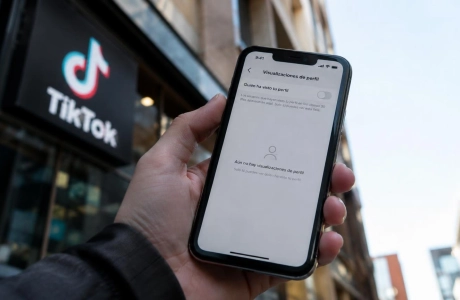
TikTok’s watch history lets you review videos you’ve watched during the last 180 days. It’s in the Activity Center, and the app’s search offers a “Watched” filter to narrow down results when you remember a word from the video.
Where to find your watch history
On iOS and Android, the steps described by Popular Science and Dexerto are nearly the same: start at your profile and go through Settings and privacy to the Activity Center. On iOS, Popular Science says to first locate the “Content & Display” section; Dexerto doesn’t mention this intermediate step. If you don’t see “Watch history” directly, look for the Activity Center under Settings and privacy.
- Open TikTok and tap Profile in the bottom-right corner.
- Tap the three-line menu in the top-right corner and go to Settings and privacy.
- Open Activity Center. On iOS, Popular Science says this option is under the “Content & Display” heading.
- Tap Watch history. The list contains videos recorded during the last 180 days.
flowchart LR
    A["Profile"] --> B["Three-line menu"]
    B --> C["Settings and privacy"]
    C --> D["Activity Center"]
    D --> E["Watch history"]
Your history may include clips that played briefly while you were scrolling, even if you didn’t watch them to the end. However, LIVE videos and Stories don’t appear in this history. So, a video’s absence from the list doesn’t prove that it was never shown to you.
How to find a specific video
There’s no option to search within the history list itself. If the video isn’t immediately visible, you can try using TikTok’s general search: you’ll need to remember a word or topic related to the clip.
- From the home screen, tap the search magnifying glass in the top-right corner.
- Enter terms related to the video and tap Search.
- In the results, go to the “Top” tab if you aren’t already there.
- Tap the “Watched” filter above the first row of results. TikTok will show videos you’ve watched that match your search.
The filter may include videos that played automatically as thumbnails while you were browsing results. If “Watched” doesn’t appear, Popular Science points to two possibilities: TikTok may not have associated the video with those terms, or you may have watched it more than 180 days ago, outside the period covered by your history.
If the results are too broad, the three-dot menu next to the search bar opens “Filters”. Popular Science describes options to limit results to videos you’ve liked, narrow them by posting period, and sort by relevance or number of likes. These filters can help narrow your search, but they don’t replace your history.
Deleting your history and its limitations
From the history screen, you can delete selected items or clear the entire record. The action described by Popular Science and Dexerto is permanent, so check your selection before confirming.
- Open your history by following the path from Profile to Activity Center.
- Tap “Select” in the top-right corner.
- Select specific videos or tap “Select all watch history” in the bottom-left corner.
- Tap the red “Delete” button.
The list is useful for finding recent views, not for reconstructing everything you’ve watched since you started using TikTok: the stated limit is 180 days. For older videos, Popular Science recommends trying the app’s regular search; it doesn’t describe a way to recover them by downloading your data, so there’s no download method we can safely recommend here.
Mistakes to avoid
- Don’t mistake absence for proof that a video didn’t play: a LIVE video or Story won’t appear in this history.
- Don’t search within the list: watch history doesn’t have its own search; use the magnifying glass and the “Watched” filter.
- Don’t forget the “Top” tab: according to Popular Science, the “Watched” filter doesn’t appear in other results tabs.
- Don’t expect the filter to be exact: it may also include clips that played automatically as thumbnails.
- Don’t select everything by accident: “Select all watch history” appears just before the red delete button.
If the video doesn’t appear in either your history or search results, check whether it falls outside the 180-day period or was a LIVE video or Story; those cases aren’t included in the list described here.
Sources: Popular Science, Dexerto