SignDrop can turn a Windows protection into a path to SYSTEM privileges: the zero-day exploits how the CLFS driver creates authentication files when a privileged process opens a tampered log. Abdelhamid Naceri, known as Nightmare Eclipse, published the exploit; Microsoft says Defender blocks attempts and that it has not observed attacks in the wild, but there is still no patch.
The exposure described does not mean that every Windows device is affected. Naceri tested SignDrop on Windows 11 26H2, Windows 11 26H2 Experimental, and Windows Server 2025 Experimental. The estimate that 80% of Windows installations could be at risk comes from the researcher; it is not an independently confirmed measurement.
First, check whether you meet the conditions
According to Naceri, the exploit requires Windows 11 26H2 to have been installed for more than 90 days and the CLFS authentication key to have a particular value. Coverage by Punto Informatico and BleepingComputer indicates that a value of 0 or 1 for this key means the system is vulnerable. SecurityWeek also reports that, according to Naceri, a Windows installation more than 90 days old is generally vulnerable.
The key to check is HKEY_LOCAL_MACHINE\SYSTEM\CurrentControlSet\Services\CLFS\Authentication\Mode. BleepingComputer describes values 0 and 1 as learning and enforcement modes, respectively. If you are not experienced with checking the Registry, ask your organization's support team for help before changing anything: checking does not require changing the value.
What to do now
Identify your Windows edition and version. Check whether the device is running Windows 11 26H2 or one of the experimental versions mentioned. The exploit was also tested on Windows Server 2025 Experimental. The sources do not say that all other versions are affected, so do not extrapolate from the fact that the device simply runs Windows.
Confirm when 26H2 was installed. If you manage the device, check the deployment history or management logs already used by your organization. The published condition refers to the time since Windows 11 26H2 was installed, not the age of the hardware or how long the device has been powered on. If you cannot establish that date, do not rule out the risk.
Read the key without editing it. Check the value of
HKEY_LOCAL_MACHINE\SYSTEM\CurrentControlSet\Services\CLFS\Authentication\Modeusing the management tools you are authorized to use. If it shows 0 or 1, the Registry condition described by Naceri is met. Do not change the value to try to make the result different: the published recommendation is to verify it, not alter it.Treat the result as a signal for support. If the system matches the versions tested, exceeds the stated age threshold, and the key is set to 0 or 1, notify your security team or administrator. Share the version, the installation date if known, and the observed value. Do not run the test exploit to confirm exposure: BleepingComputer notes that a PoC that opens a SYSTEM console indicates vulnerability, but there is no need to trigger that elevation to escalate a check.
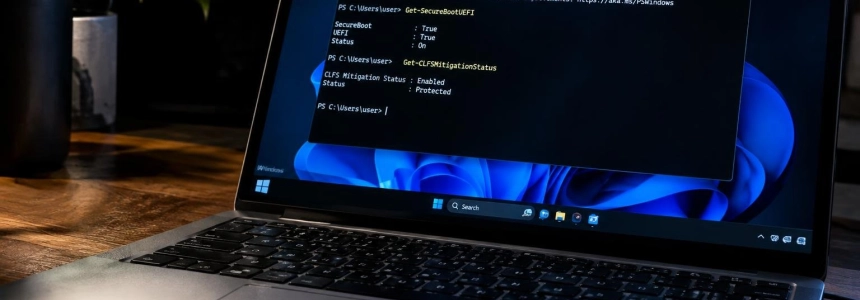
Keep CLFS protection enabled. Do not disable the mitigation to try to address SignDrop. BleepingComputer warns that doing so would expose the device to attacks based on earlier memory corruption vulnerabilities that the protection was intended to contain. The sources also do not identify an alternative setting that would serve as a safe workaround.
Keep Defender and EDR tools active. According to Microsoft's statement published by SecurityWeek, Defender detects and blocks exploitation and generates alerts about privilege elevation behavior. SignDrop is designed to try to bypass antimalware engines' tamper protection, but that is no reason to turn them off: Microsoft says Defender blocks potential attempts and that it has not observed exploitation in the wild.
Monitor Microsoft's communications. No patch is available according to the published coverage. Follow Microsoft's official advisories and apply an update when the company releases one that addresses the issue. Until then, keep a record of which devices meet the conditions and avoid presenting a one-time check as a guarantee that the system is protected.
Report any alert. Microsoft says Defender alerts on the associated privilege elevation behavior. If a detection appears on a device that meets the conditions, report it to the security lead and retain the alert details for review. The sources do not describe a specific response procedure or confirm active incidents, so do not automatically attribute an alert to SignDrop exploitation.
Mistakes that can make the situation worse
The riskiest mistake would be to disable the CLFS mitigation to neutralize a vulnerability that takes advantage of it. The mitigation was introduced to reduce attacks exploiting previous memory corruption flaws; removing it could bring back that exposure. Check the status and report the result, but do not alter the key or protection on your own initiative.
Do not turn the PoC into a routine diagnostic tool, either. BleepingComputer reports the recommendation to run it to check for the vulnerability, but SecurityWeek reports that the code can end up opening a SYSTEM console. For an initial check, look at the version, the installation age, and the Registry value; leave any exploitation test to an authorized security process.
Finally, do not interpret the 80% estimate as a measured rate for your organization or as proof that a particular device is compromised. That figure is Naceri's assessment. The key condition and version help identify potentially vulnerable devices, while Microsoft says it has not observed exploitation in the wild.
For now, the practical decision is to keep CLFS protection enabled, review devices that meet the conditions, and wait for a Microsoft update. The company has not yet released a patch for SignDrop.
Sources: Punto Informatico, Hardware Upgrade, BleepingComputer, SecurityWeek, Cyderes