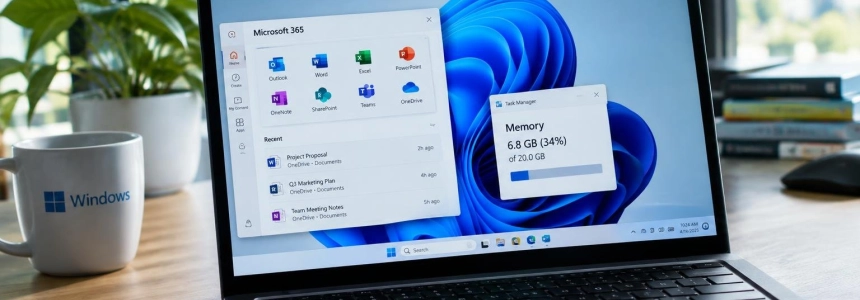
Microsoft puts the memory freed up by optimizing Windows 11, Microsoft 365, and several of its own services at more than 860 MB. Of that total, Microsoft 365 reduces its memory usage by 360 MB; Defender, OneDrive, and Purview together save more than half a gigabyte, although the company does not break down how much each contributes.
The figures were announced at Ignite 2026 and expand on optimization work Microsoft has focused especially on computers with 8 GB and 16 GB of RAM. The company also says a test involving several applications finished about 21% faster with the October build than with the January build.
Where the more than 860 MB comes from
The figure combines two groups of improvements. Microsoft says Word, PowerPoint, Excel, and Outlook together use 360 MB less memory than before. Separately, Defender, Purview, and OneDrive save more than 500 MB across the three services, Ian LeGrow explained during an Ignite 2026 presentation.
| Software or services | Reported memory savings |
|---|---|
| Microsoft 365 | 360 MB |
| Defender, Purview, and OneDrive combined | More than 500 MB |
| Total for both improvements | More than 860 MB |
Microsoft did not publish a separate figure for Defender, OneDrive, and Purview. Windows Latest, which reported the company's explanation at Ignite, also notes that the combined savings exceed half a gigabyte; it is not possible to tell which service contributes the most to the reduction.
The “nearly 900 MB” figure mentioned in some reports is a rounding of that total: the figure reported by Microsoft is more than 860 MB, not an identical reduction on every PC. In a post on the Windows Experience Blog, the company describes another related measurement: in multitasking tests with Edge, Office, Outlook, and Teams on PCs with 8 GB, the growth in committed memory was reduced by up to 900 MB.
Fewer components loaded and shared memory
LeGrow, who leads an engineering team for the Windows core operating system, explained that Microsoft has aimed to reduce the background work the system performs without removing features. The measures cited include not loading unnecessary components and allowing multiple components to share memory when they use similar frameworks or the same framework.
“We’ve been really thoughtful about how Windows can either not load all the components that it might have in the past or sharing memory between components, leveraging similar frameworks or the same framework across components to share memory.”
— Ian LeGrow, head of an engineering team for the Windows core operating system
The Windows Experience Blog, authored by Pavan Davuluri, executive vice president of Windows + Devices, presents the optimization as having three areas of focus: making better use of available memory, prioritizing interactions that need to respond quickly, and reducing the resources used by Windows and key applications. According to Microsoft, improvements in Windows, Edge, and Microsoft 365 reduce the growth in committed memory by up to 900 MB during certain multitasking tests on PCs with 8 GB.
The company attributes some of the Microsoft 365 savings to more efficient memory organization and allocation, which reduces the cost of managing it. It also mentions platform improvements that could benefit third-party applications: in the case of WhatsApp for Windows, Microsoft says the change results in a double-digit memory improvement, without specifying the percentage.

More responsive performance on PCs with 8 GB
Microsoft says that on PCs with 8 GB of memory, Windows responds up to 20% faster and multitasking improves by up to 40% in its lab tests. The first figure refers to actions such as opening Start, searching, using the right-click menu, going to Settings, launching Snipping Tool, and opening File Explorer. The company compares telemetry measurements from different Windows 11 builds.
The 40% figure applies to a specific workload, not to a universal improvement in every task. Microsoft tested an HP OmniBook 3 with 8 GB of memory and an 8-core Snapdragon X Plus processor: it opened 20 Edge tabs, played a 4K video, and kept large Word, PowerPoint, and Excel files open, along with Outlook and File Explorer. The comparison was between January builds and later ones.
In another demonstration cited by Windows Latest, the scenario included a simulated Teams call, a 4K background video, 20 Edge tabs, Outlook, and several interactions with Microsoft 365 applications handling large files. Microsoft said the October build completed that test about 21% faster than the January build. LeGrow noted that the clip shown lasted 30 seconds and that the team had also run longer tests.
The figures are not interchangeable: 20% measures the responsiveness of everyday interactions; 40% applies to a multitasking scenario; and 21% refers to another workload presented at Ignite. The Windows Experience Blog cautions that real-world performance varies depending on the device, its configuration, the files, and the active tasks.
Tests on laptops and a virtual machine
Windows Latest compared memory usage after restarting an older laptop with 8 GB and AutoCAD and VS Code installed. On Windows 11 25H2, it observed 5 GB in use; after updating the same computer to 26H2, the figure dropped to 3.3 GB. Available memory increased from 2.9 GB to 4.6 GB, before opening Chrome.
On a clean virtual machine with 8 GB, the same outlet recorded 4.1 GB in use after restarting with 25H2 and between 2.8 and 3.2 GB with 26H2. Opening the Widgets Discover feed caused usage to rise again. Microsoft, for its part, says that on computers with 8 GB or less, Widgets only loads when opened, reducing committed memory by about 200 MB while it remains closed.
A test of a three-year-old laptop with 16 GB showed up to 2 GB less after restarting, according to Windows Latest. With Edge, WhatsApp, Teams, and Outlook open while playing a YouTube video in 4K at 60 frames per second, usage was around 87%. After adding Spotify, Paint, and other applications, it reached 89%.
These are measurements from specific computers, not a guarantee for every configuration. PBX Science also reports a comparison published by Windows Central: on a laptop with 8 GB, idle usage dropped from 5.3 GB on 25H2 to 4.1 GB on 26H2, but the difference was smaller under a heavier workload, falling from about 7.3 GB to 6.8 GB. The same outlet notes that some users still see high usage.
How to get the optimizations and what Microsoft is preparing
Microsoft says the latest improvements are available with Windows 11 26H2, build 26300.9818 or later. Its instructions are to go to Settings > Windows Update, turn on the option to get the latest updates as soon as they’re available, and select “Check for updates.” It also recommends keeping Edge, Microsoft 365, and Teams up to date, because some optimizations arrive through those applications or the Microsoft Store.
The company says its work will continue. Announced initiatives include making memory compression more efficient, sharing components across features—including Search and Widgets, and OneDrive and Photos—and designing WinUI 3-based applications, such as File Explorer, Notepad, and Paint, to start faster and use fewer resources.
Microsoft also says it is working with PC manufacturers and silicon partners to reduce the memory reserved by hardware and make more available to Windows and applications. LeGrow said at Ignite that improvements designed for PCs with 8 GB also benefit those with more memory; Robin Seiler, head of the Windows commercial collaboration team, said that work for 8 GB carries over to higher-capacity configurations.
The company links this effort to the cost of memory. During the presentation, LeGrow said memory prices had risen sharply and that adding more RAM has a significant impact on device costs. Microsoft says it has been working on these optimizations since January, with particular focus on PCs with 8 GB and 16 GB.
The Windows Experience Blog adds that Microsoft tests changes on more than 20,000 PCs in its labs and checks their behavior again using usage data after updates are released. For those who already have a compatible computer, the company's specific recommendation is to check the installed build and update Windows, Edge, Microsoft 365, and Teams.
Sources: Windows Latest, Windows Experience Blog, Tom's Hardware, PBX Science, IT之家