The November Windows 11 update may enable Memory Integrity on more compatible PCs: the feature protects the system kernel, but Microsoft has acknowledged that it can reduce gaming performance on some configurations. The rollout is gradual and respects users’ and IT administrators’ previous decisions.
The feature is also called HVCI and checks in an isolated environment whether drivers and other code can run. Windows evaluates hardware, driver compatibility, and performance before enabling it; on some PCs, it also enables virtualization-based security (VBS), which is required for the feature to work.
First, check whether the change affects you
Automatic enablement was announced for Windows 11 25H2 and 26H2. Microsoft included the change in the optional October update KB5127936; the November security update KB5132061 includes its earlier improvements. The rollout will not reach all PCs at once. Microsoft does not list the change as a feature of version 24H2.
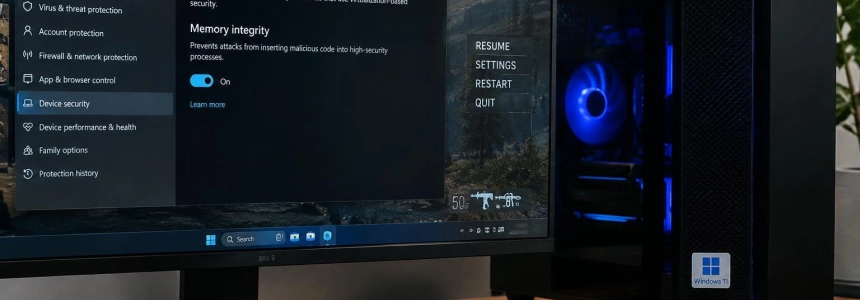
To check the status, open Windows Security and go to Device security > Core isolation details. The Memory Integrity toggle appears there. If it is on, you can test your games with it enabled; if it is off, Windows should not turn it back on automatically if you previously disabled it manually.
“security works best when protection is built in, not added later”
— Peter Waxman, Microsoft
Differences between PCs matter. Windows Latest notes that 8th-generation or newer Intel processors and AMD Zen 2 or newer processors meet the hardware requirements for automatic enablement. Earlier generations lack certain hardware features that reduce the performance cost, although the update does not enable the feature automatically if the PC is not eligible.
What to do before changing the setting
Check whether Memory Integrity is enabled. Go to Windows Security > Device security > Core isolation details and check the toggle. Do not infer its status from the installation date: the gradual rollout means two compatible PCs may receive the change at different times.
Note which game and situation you are concerned about. If you notice a drop in frame rates, identify the game and repeat the same scene or test with the feature enabled.
Compare performance carefully. Use the same game and conditions before and after changing the setting. Tom’s Hardware measured an average drop of nearly 5% in its tests, reaching 10% in some games; Digital Trends found less than 3%. These are results from specific tests, not a prediction for every PC.
Look for compatibility issues as well as FPS loss. Microsoft includes game anti-cheat solutions among the programs that may have problems with Memory Integrity. If a game stops working after the feature is enabled, check whether this change coincided with the issue and whether there is a problem with its anti-cheat system or drivers.
If you decide to disable it, use its toggle. On the Core isolation details screen, switch off the Memory Integrity toggle. Windows Latest says you can turn it off there. Keep in mind that doing so gives up the protection that verifies code in the isolated environment; this is not purely a performance setting.
Try the temporary alternative for gaming. TechRadar suggests disabling the feature during a gaming session if the PC loses performance, then turning it back on afterward. If you choose this compromise, return to the same Windows Security screen when you are done and check that it is enabled.
If you manage a company PC, check your IT policy. According to Peter Waxman, company policy takes precedence over automatic enablement. Do not try to change a setting managed by your organization: the IT administrator retains control.
Mistakes that can leave you with less protection
Do not disable it in advance just because you game on your PC. Microsoft evaluates capabilities and compatibility before enabling it, and published measurements vary by PC and game. If you do not notice any issues, Windows Latest recommends leaving it on.
Do not confuse VBS with the Memory Integrity toggle. VBS provides the isolated environment the feature needs; some configurations may enable VBS alongside it. The Windows Latest guide shows how to turn off Memory Integrity, but does not recommend disabling VBS as a general solution.
Do not assume the change has arrived just because you installed the November update. Microsoft describes a gradual rollout, and its update note says eligible PCs may receive the feature through updates. Check the setting instead of relying on a date or patch version.
Finally, do not ignore startup failures after enablement. Windows Latest notes that if an incompatible driver causes crashes during startup soon after Memory Integrity is turned on, Windows may disable it automatically. If the PC works and you cannot reproduce a drop in gaming performance, leave the protection enabled.
Sources: Windows Latest, Microsoft Support, Microsoft Support, Tom's Hardware, TechRadar