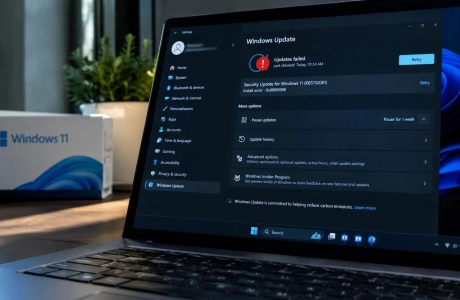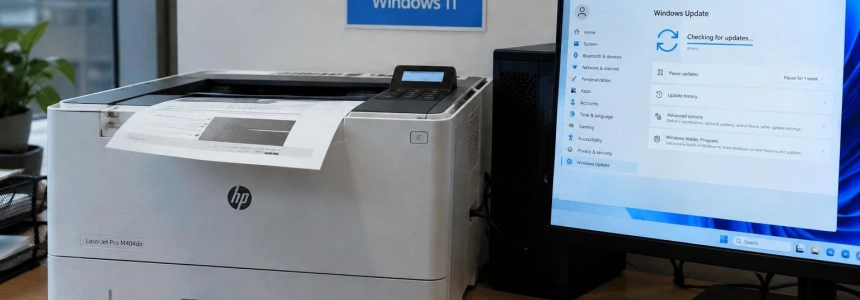
Windows security updates for November 2026 may prevent documents containing images with zero height or width from printing and cause certain activation operations to fail with error 0x80041008. The printing issue may affect client computers running Windows 10 or later and Windows Server 2016 or later; the activation issue is concentrated in systems and organizations running certain SLMGR commands.
First, identify which of the two issues you have
If the printer fails to process a particular document, especially a Word document, the issue could be related to zero-size images. Microsoft observed the problem when printing Word documents through Windows Graphics Device Interface (GDI), but also warns that it may occur in other applications. These objects may be invisible on screen and form part of a watermark, the layout, or an automatically generated document.
The printing issue is widespread: Microsoft associates it with Windows 11 and Windows 10, as well as Windows Server. IlSoftware.it and SoftZone detail versions from Windows 11 26H2 to Windows 10 and Windows Server 2016; Microsoft's notice for Windows Server 2025 also confirms a printing issue, although that specific case concerns adding a printer published in Active Directory and not the invisible-image issue. Do not confuse the two incidents.
If, instead, a licensing script returns “Invalid parameter (SWbemObjectEx)” along with code 0x80041008, check whether it runs `slmgr.vbs /ipk` to install a key or `slmgr.vbs /skms-domain` to configure the KMS server lookup domain. Microsoft documents this issue in Windows 11 23H2, Windows 10 22H2 and 21H2, and Windows Server 2025, 2022, and 2019.
There is an important distinction for organizations: devices that are already activated remain activated, according to Microsoft. The error affects certain activation or license-management operations; the cases identified include devices being configured to use KMS. If the device is not experiencing the issue, these alerts provide no reason to change its licensing configuration.
What to do about printing issues
Confirm the pattern before changing Windows. Note which document fails, which application created it, and whether the problem occurs when printing from Word or another application. Also check whether the issue began after installing the November security update. Microsoft says the defect may affect images whose height or width renders as zero at the selected resolution; the object may not be visible in the document.
Try a copy exported to PDF. IlSoftware.it suggests exporting the document to PDF and then trying to print it from a different application. Do this with a working copy and check the result before considering the problem resolved: this is a temporary workaround, not a fix for the Windows issue.
Review unnecessary graphic elements. If you can edit the document, look for superfluous graphic objects that are part of the layout or a watermark. IlSoftware.it suggests rebuilding the document without those elements; do not remove objects without first checking that they are not needed for the design or content.
Avoid uninstalling the patch blindly. Updates include security fixes, and removing one may leave the system without those fixes. IlSoftware.it recommends weighing the risks before removing an update. If printing is essential and the alternatives do not work, escalate the issue to the technical support team responsible for your computer or organization.
Check printed documents. While Microsoft investigates the printing issue, verify that pages have actually printed in full, especially documents with design elements or watermarks. Do not assume that a job sent to the queue completed successfully.
What to do if SLMGR returns 0x80041008
Look for the error in logs and scripts. If you manage licenses, review recent SLMGR executions and look for code 0x80041008 or the message “Invalid parameter (SWbemObjectEx)”. Microsoft identifies `slmgr.vbs /ipk` and `slmgr.vbs /skms-domain` as affected operations; the issue may interrupt automated key or KMS configuration tasks.
Check the actual activation status. Do not change keys or KMS settings just because a command failed. Microsoft says that devices already activated remain activated, and that devices that already have the KMS client key and the necessary configuration, without needing to run the affected commands, should not be affected. Keep the error message and verify each device's status before deciding on the next step.
Contact Microsoft Support for Business. Microsoft says organizations that need immediate mitigation should contact its business support team. The company said it is preparing a fix for the coming days. Do not independently replace KMS keys or settings as an automatic response to the error.
Review the results before repeating deployments. If a machine-preparation or bulk-activation process failed, confirm which devices completed the operation and which returned the error. Avoid relaunching a deployment across the entire fleet without first checking its scope; the alert concerns specific operations, not a general deactivation of Windows.
Mistakes that can make diagnosis harder
Do not attribute every printer failure to these images. Microsoft describes a specific condition: images that render with zero height or width at the selected resolution. In addition, for Windows Server 2025, another issue has been confirmed in KB5131080: adding a printer published in Active Directory from Settings may fail with error 87. Microsoft says this defect stems from the October update and generally does not affect existing printers or printing. It is a separate issue.
Do not confuse a command error with a lost license. Code 0x80041008 appears when running certain SLMGR operations; Microsoft says that devices already activated remain activated. Before reinstalling keys, changing KMS, or rebuilding images, determine which command failed and whether the device actually needs that operation.
There is no date yet for the printing fix. SoftZone reports that Microsoft is still investigating that issue, while a fix for the activation commands was expected in the coming days. For organizations blocked by the licensing issue, the temporary solution specified by Microsoft is to contact Microsoft Support for Business.
Sources: BleepingComputer, IlSoftware.it, SoftZone, theregister, Microsoft Support