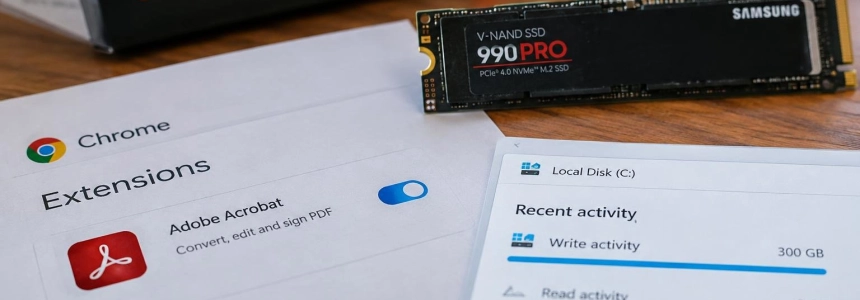
A Windows 11 user attributed more than 300 GB of write activity over three days to the Adobe Acrobat extension for Chrome, even with the browser closed. The figure comes from a Windows metric that can also count network transfers, so it does not by itself prove that 300 GB was physically written to the SSD.
The user’s investigation pointed to a service worker associated with Adobe, which reportedly generated and replaced cached data, including overnight. After removing the extension, clearing related data, and restarting Chrome, the user reported a drop in idle activity. This does not prove that all computers with the extension exhibit the same behavior.
How to check whether Chrome writes in the background
Check which process is generating activity. In Windows, open the Start menu, type
resmon, and launch Resource Monitor. On the Disk tab, sort processes by write activity and see whether Chrome appears while the computer is idle. The tool shows activity in real time; a single reading is not enough to attribute a cumulative total over several days.Review your installed extensions. In Chrome’s address bar, open
chrome://extensions/. Check whether Adobe Acrobat is installed and consider whether you need it. If you don’t use it, you can remove it from the extensions page; if you’d rather investigate first, avoid uninstalling other extensions at the same time so you can identify any change in activity.Check registered service workers. Wccftech points to
chrome://serviceworker-internals/as a page where you can review Chrome’s service workers. The reported case linked one to Adobe, but the mere presence of a service worker does not prove that it is causing excessive writes. Don’t delete registrations at random: first identify whether the service is associated with the extension you’re checking.Run a controlled test if you suspect the extension. Note the activity shown in Resource Monitor, remove Adobe Acrobat if you don’t need it, and observe the computer again while it is idle. In the published case, the user also unregistered the associated service worker, cleared its site data, and restarted Chrome; afterward, the user reported less activity. The available information does not provide a detailed menu path for those actions, so it’s best not to improvise one.
Check what happens when you close Chrome. Close the windows and see whether write activity continues. Wccftech says you can disable background app activity at
chrome://settings/system. If you change that setting, observe the disk again so you can check whether it makes a difference on your computer instead of assuming that any writes come from Chrome.Compare equivalent periods. In the test described, idle activity fell from about 730 MB to 135 MB in five minutes after the extension was removed and data was cleared, a reduction of more than 81%. This is a result reported by that user, not a benchmark for all computers. Compare similar intervals under similar conditions; if you use the computer during one measurement and leave it idle during another, the results won’t be directly comparable.
What the 300 GB figure does—and doesn’t—mean
The figure comes from WriteTransferCount, a Windows metric that, according to Wccftech, can include transfers that are not writes to storage, such as network activity. For that reason, the more than 300 GB observed should not be interpreted as a definitive measurement of what was physically written to the SSD.
The user also observed that the local cache occupied 3.5 GB, while the service worker appeared to generate and replace nearly 1 GB of cached data. These figures describe the investigated case; by themselves, they cannot be used to calculate drive wear or prove that all of that data was written to it.
HardZone reports that activity dropped considerably after the extension was removed and the data it had left behind was cleared. Wccftech adds that the user unregistered the service worker and restarted Chrome. The difference between the two accounts does not change the simplest step for anyone who doesn’t use the extension: remove it and see whether activity drops.
Mistakes to avoid
Don’t confuse activity with physical writes. The 300 GB figure is recorded activity, not confirmation that 300 GB was written to the SSD. Presenting it as measured wear would overstate what is known.
Don’t conclude that it affects everyone. The case concerns one user and one specific extension. It does not prove that every installation of Adobe Acrobat for Chrome generates the same activity, or that all Chrome users have the problem.
Don’t delete data or registrations without identifying their connection. The user removed data linked to the extension and unregistered an associated service worker. That does not justify clearing data for sites or services you haven’t identified.
Don’t use a single reading to diagnose the problem. Resource Monitor shows activity in real time; observe the computer over a comparable interval and consider which programs are open before attributing writes to Chrome.
Don’t fixate on a single figure. HardZone notes that modern SSDs can handle a considerable amount of writing and that this case does not mean all drives are at risk. If you don’t use an extension, removing it prevents it from running unnecessarily; otherwise, check what is actually happening on your computer.
There was also a separate report on Adobe’s official forums, published in May 2026, about 4 MB log files reportedly being generated repeatedly on several enterprise computers. Removing the extension reportedly resolved that problem, but it is unclear whether the two incidents share a cause. For now, the useful check is straightforward: review disk activity and confirm whether the extension is installed and in use.