You don’t need to choose the same tool to edit a Reel on your phone as you would to put together a video with multiple tracks on a computer. This comparison brings together ten editors with free options and distinguishes between what you can do without paying and the features tied to a plan.
How to choose an editor for short videos
Start by deciding where you’ll edit: phone, computer, or browser. Then check what the free version limits: it may be resolution, duration, access to premium resources, or the presence of a watermark. Free exports without a watermark are available, for example, in several options, but this isn’t a universal condition.
The work you do most often also matters. For subtitles, look for automatic tools; for editing to the beat, a timeline with multiple tracks and speed control; for creating content with a consistent visual identity, templates and brand assets. If you need advanced color, effects, or audio tools, a desktop editor may offer more control, although it will require more time to learn.
Ten editors for creating short videos
1. CapCut: for creating quickly with templates and AI tools
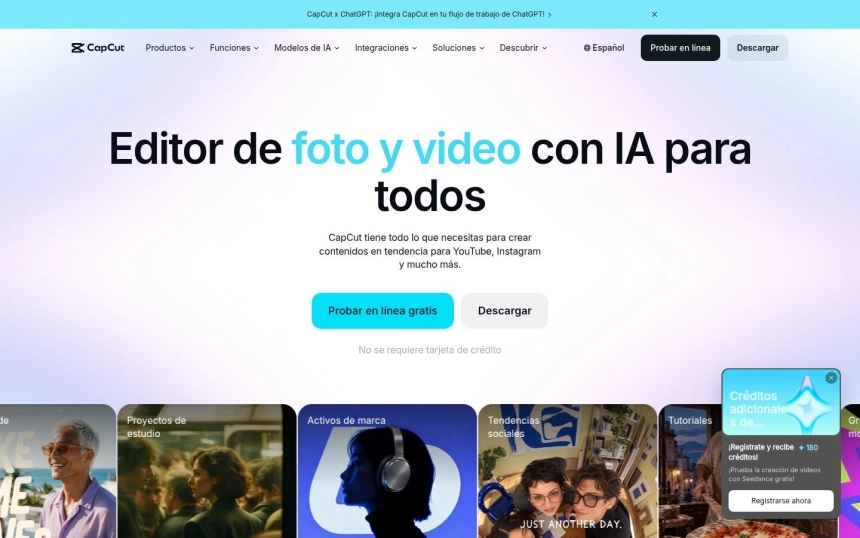
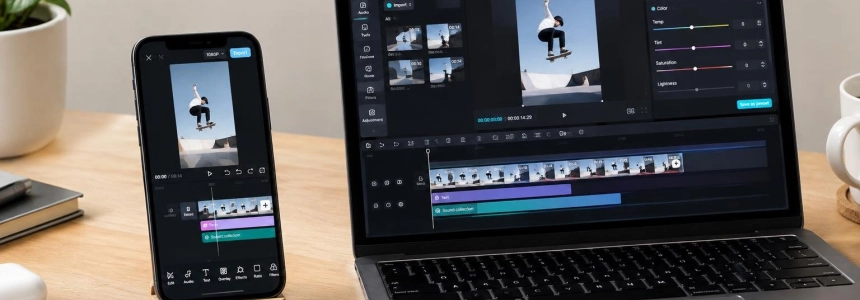
CapCut combines online video editing with social media tools. Its web editor lets you cut, trim, add transitions and subtitles, and export HD video without a watermark; it also offers templates for TikTok and Reels. The company’s tools page mentions options for Android and iPad, as well as the online editor. The free version includes basic tools and free templates.
The Pro plan costs 29.99 euros per month and includes premium templates, AI features, 650 monthly credits, and 1 TB of storage. The pricing page also lists Ultra at 68 euros, but Pro is the paid upgrade described for anyone who wants more resources. It’s a suitable choice for those who prioritize templates and automated features; the downside is that premium features require Pro and availability may vary by region or platform.
2. Edits: for recording and editing directly from your phone
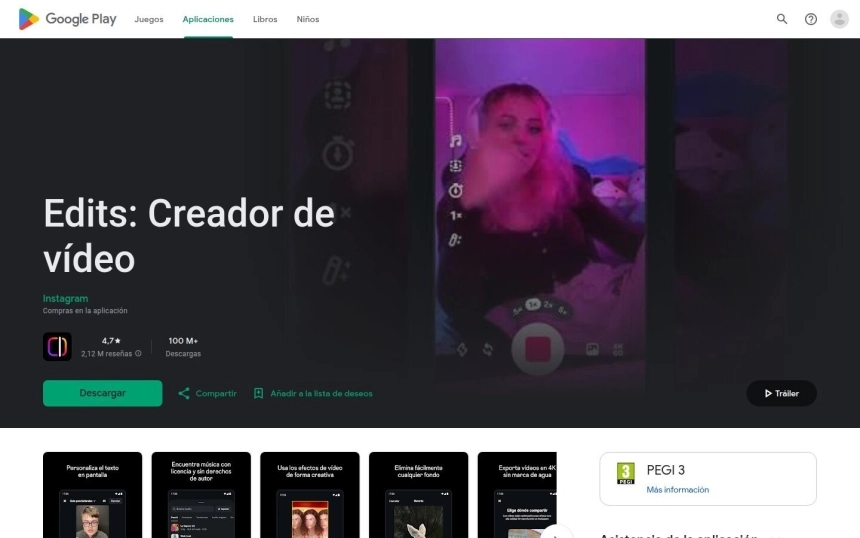
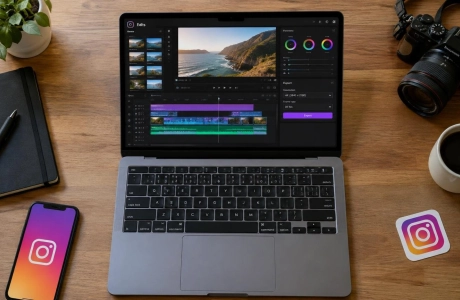
Edits is Instagram’s video creation app for phones. It lets you record clips up to 10 minutes long, edit with frame-level precision, generate subtitles, enhance voices, and export without a watermark for sharing on different platforms. It also includes a live statistics dashboard for tracking Reels performance. The listing doesn’t show a subscription fee; it indicates in-app purchases.
It’s a good fit for anyone who wants to record, edit, and review metrics on their phone, with direct access to features designed for Instagram. One specific downside is that music exports may have limits: a review on the app listing describes a suggested track that wasn’t exported when the video exceeded 90 seconds. This is a user experience published in the store, not a general condition stated by the app.
3. InShot: for editing clips and adding music on your phone
InShot is a mobile video and photo editor. The Google Play listing includes trimming, merging clips, speed control, picture-in-picture layers, chroma key, keyframes, voice-over, filters, and more than 60 transitions. It also lets you adjust the canvas to formats such as 9:16 for TikTok. The free app contains ads and offers in-app purchases.
It’s a practical option for anyone who wants to combine clips, music, text, and effects without switching to a computer. The official page also highlights automatic subtitles, voice enhancement, and stabilization. The downside is that the free version includes ads; the listing consulted doesn’t publish the price of the paid plan.
4. VN: for editing multiple tracks without paying
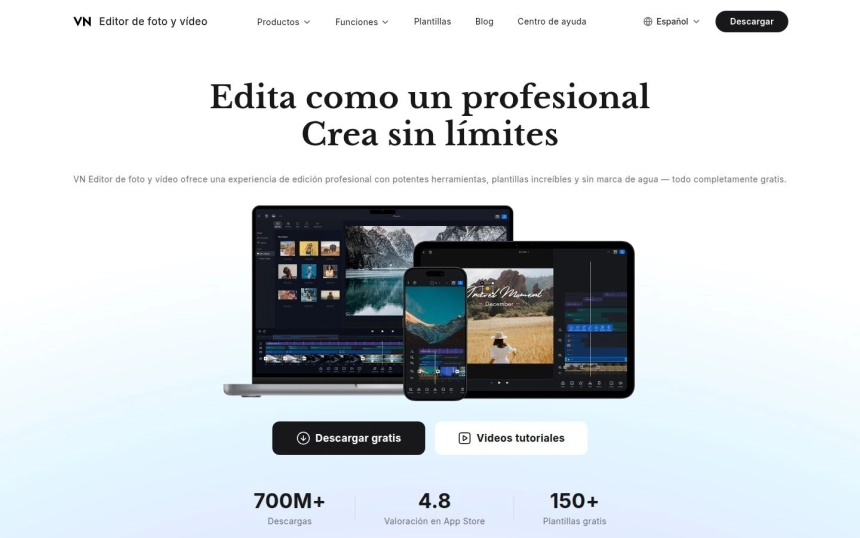
VN offers a multitrack timeline and, according to its official website, free templates, music and sound effects, keyframes, speed curves, filters, and automatic subtitles. The company presents the editor as free and watermark-free; the Google Play listing describes it as an app for TikTok, Reels, and Shorts, with in-app purchases. Its core offering is free multitrack editing.
It may suit anyone who wants more control over layers, pacing, and animations on their phone. The listing also includes AI tools such as text-to-speech and background removal. One downside is that the listing itself recommends parental supervision and notes user interactions and in-app purchases; the price of these purchases isn’t included in the information consulted.
5. Canva: for creating social content with templates
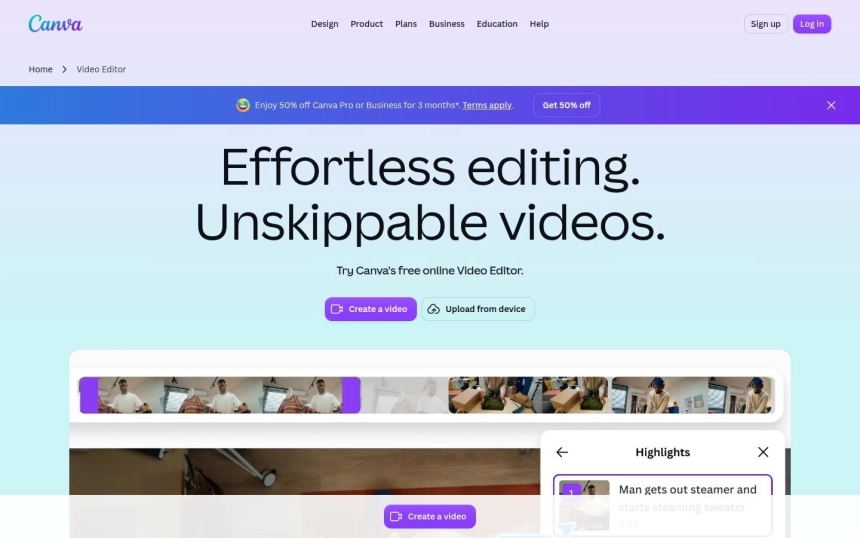
Canva offers an online video editor with a multilayer timeline, subtitles, animations, and templates for TikTok, Reels, and Shorts. The Free plan includes the editor and design resources; Canva Pro costs 12 euros per month and adds AI tools, premium content, post scheduling, and more storage. Templates and visual assets are its strengths.
It’s a good option for anyone who alternates between video and other graphic materials or wants to maintain a brand identity. The downside is that several tools and resources are reserved for Pro, such as AI background removal and some premium content. The page also shows Business, but Pro is enough as a reference for an individual plan.
6. Adobe Premiere: for editing social media content on your phone
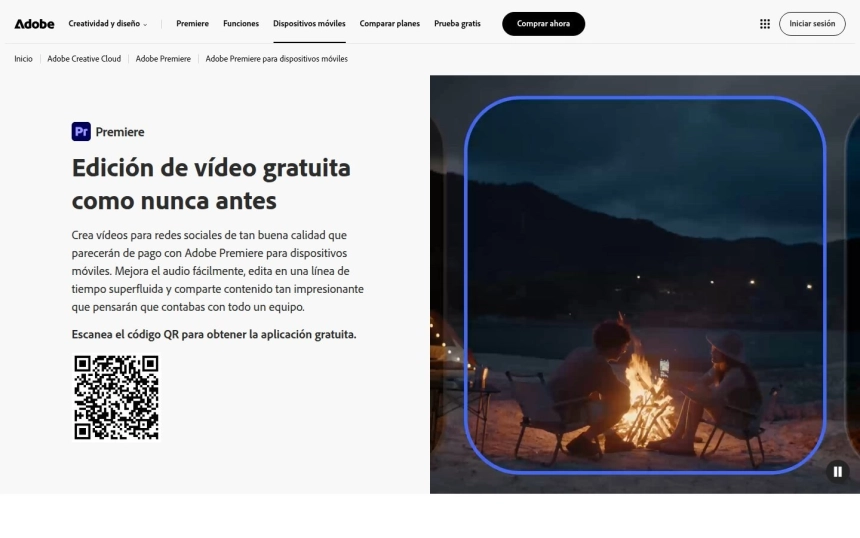
The Adobe Premiere mobile app offers a multitrack timeline, unlimited automatic subtitles, one-tap background removal, effects, and transitions. Adobe says its features and exports are free and watermark-free; payment applies when generative AI tools are used. Basic mobile editing is free.
It can work for anyone who wants more control over layers and audio without leaving their phone: it includes voice enhancement and noise reduction, as well as built-in creative assets. The page highlights a dedicated space for YouTube Shorts. The downside is that generative features use paid credits; no specific price for those credits is given here.
7. DaVinci Resolve: for those seeking advanced control on a computer

DaVinci Resolve brings editing, color correction, visual effects, motion graphics, and audio post-production together in a desktop program. The free version is available to download; DaVinci Resolve Studio costs 255 euros. Vertical editing and subtitle tools are among the program’s features, along with dedicated workspaces for editing, color, effects, and sound. The free version brings post-production tools together in a single application.
It’s an alternative for anyone editing on a computer who wants room to work on more complex projects, as well as short videos. Its downside is clear: the breadth of tools may require a learning curve, since the program divides work into specific areas such as Fusion and Fairlight. Studio adds effects and other features, although you don’t need to pay to download the free version.
8. Clipchamp: for editing in the browser and exporting in HD
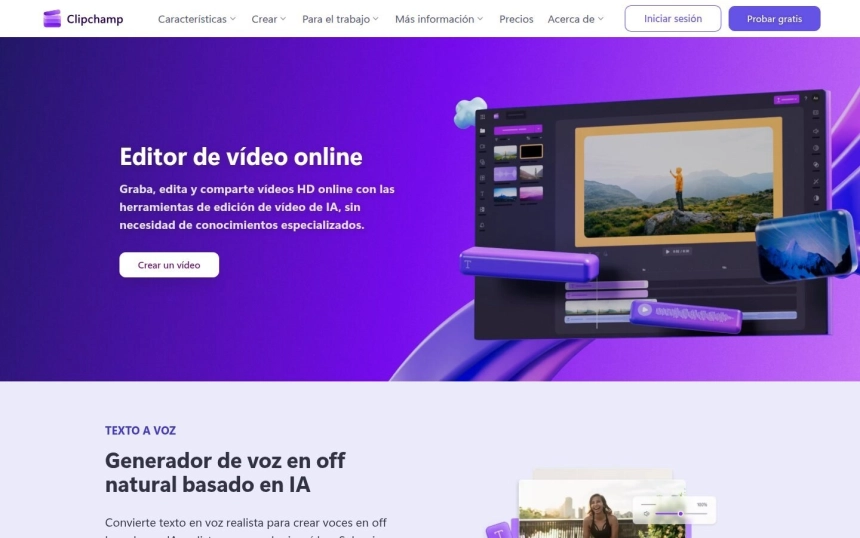
Clipchamp works in the browser and also has a desktop app for Windows. The free plan includes watermark-free exports up to 1080p, automatic subtitles, editing tools, and free assets. Microsoft 365 Personal or Family unlocks premium features, including 4K UHD exports, premium assets, and a brand kit. Free exports go up to 1080p.
It’s an option for anyone who wants to work without installing an editor and create vertical videos with templates, subtitles, or screen and camera recording. The downside is that premium assets prevent free export if they’re included in the project. The price depends on the Microsoft 365 plan; the page consulted doesn’t give a specific Clipchamp price.
9. Kapwing: for adding subtitles and working with others
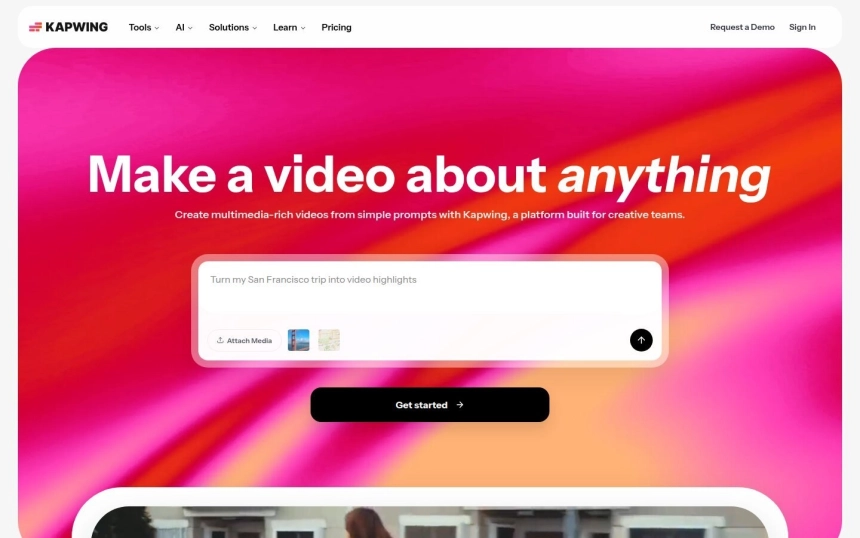
Kapwing is an online editor with a timeline, audio tools, automatic subtitles, and AI features. Its free plan offers 10 credits, exports with a watermark, 720p resolution, and videos up to four minutes long. Pro removes the watermark, allows 4K exports, and adds collaboration and more storage; the page consulted doesn’t include a price in the available material. The free plan limits duration and resolution.
It may be useful for anyone creating videos with others or who needs subtitles and content repurposing. Pro includes up to 1,000 minutes of automatic subtitling per month, compared with up to 10 minutes on the free plan. The downside for getting started is clear: free exports include a watermark and videos can’t exceed four minutes.
10. Filmora: for moving from simple edits to more precise editing
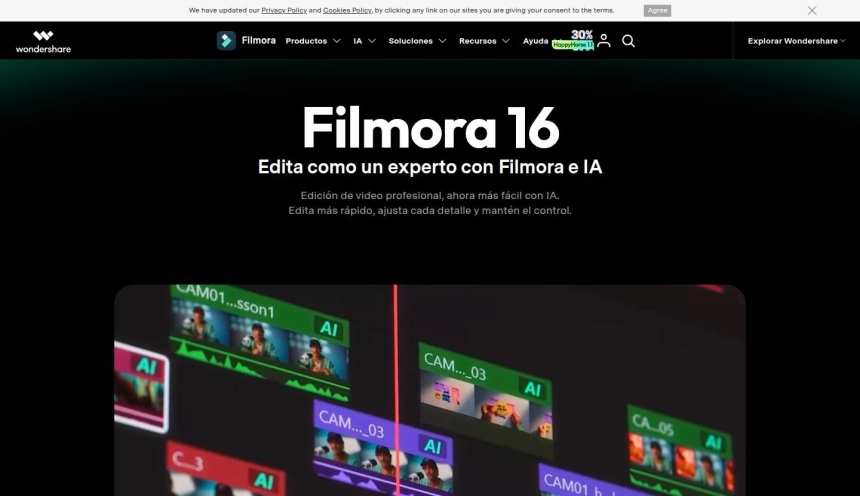
Filmora is a desktop editor with a timeline, keyframes, camera tracking, color tools, subtitles, and AI features. The platforms page consulted describes Filmora for Windows 10 and 11. In the official store, the Basic plan is listed at 49.99 dollars per year, with watermark-free and 4K exports; Advanced costs 59.99 dollars per year and adds 1,000 monthly AI credits. Basic costs 49.99 dollars per year.
It’s a good fit for anyone who wants to start with an accessible timeline and then use more advanced motion, audio, or color controls. The downside is that AI features depend on credits: the Advanced plan includes a monthly allowance, and the paid options consulted are listed in dollars. The purchase page also offers other plans, so it’s worth reviewing the terms before choosing.
Comparison of platforms, plans, and limits
This table summarizes the terms shown on the listings and pages consulted. When a specific price isn’t published, the paid-plan column indicates the option mentioned without assigning it a price. Free limits vary considerably between services.
| Editor | Where it works | Free | Paid plan | Best for |
|---|---|---|---|---|
| CapCut | Browser; Android and iPad mentioned | Basic tools and free templates; HD export without a watermark in the web editor | Pro: €29.99/month | Templates and AI tools |
| Edits | Phone | Editing, subtitles, statistics, and watermark-free export | In-app purchases; price not specified | Recording, editing, and tracking Reels |
| InShot | Mobile, according to the Google Play listing | Editing with ads | In-app purchases; price not specified | Music, effects, and vertical format |
| VN | Mobile, according to Google Play | Multitrack tools and templates; the website presents it as watermark-free | In-app purchases; price not specified | Layers, keyframes, and speed |
| Canva | Browser | Editor, templates, and free resources | Pro: €12/month | Templates and brand design |
| Adobe Premiere | Mobile | Free editing and export, without a watermark | Payment for generative AI tools; price not specified | Multitrack timeline and subtitles |
| DaVinci Resolve | Computer | Downloadable free version | Studio: €255 | Color, effects, editing, and audio |
| Clipchamp | Browser and Windows | Watermark-free exports up to 1080p | Microsoft 365 Personal or Family; price not specified | Subtitles and browser-based editing |
| Kapwing | Browser | 720p, watermark, and videos up to 4 minutes | Pro; price not specified | Subtitles and collaboration |
| Filmora | Windows | The page consulted lists a free plan | Basic: US$49.99/year; Advanced: US$59.99/year | Editing controls and AI tools |
Which one to choose based on what you do
If you mainly edit on your phone, compare Edits, InShot, and VN: Edits adds statistics for Reels, InShot offers music and effects, and VN stands out for its layers and speed controls. For mobile editing with multiple tracks, VN is a standout option; if you prefer to record and review Instagram performance in the same place, Edits brings those tasks together.
To get started for free in a browser, Clipchamp lets you export in 1080p without a watermark, while Canva makes it easy to use templates and visual assets. CapCut also brings together templates and web editing tools, although some advanced features are in Pro. Check export limits before choosing, especially if you plan to use premium assets or need to avoid watermarks.
If you’re looking for a desktop editor, DaVinci Resolve offers a free version with editing, color, effects, and audio tools; Filmora offers annual plans with watermark-free exports and more AI credits in its higher-tier options. For online collaboration, Kapwing includes a shared workspace in Pro. The type of project and the device determine the best fit: a quick vertical video doesn’t require the same workflow as an edit with color correction and multiple tracks.