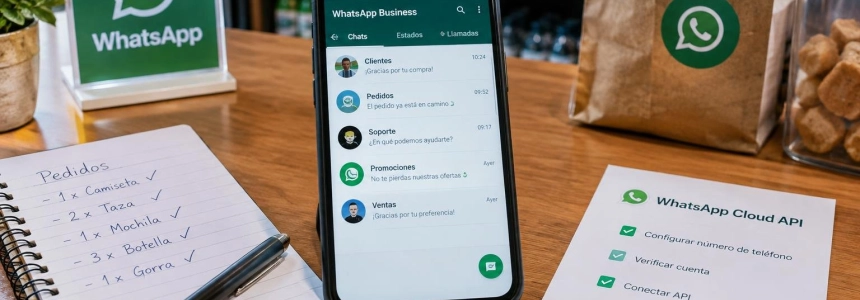
Meta lets you connect a number already used with WhatsApp Business and Cloud API and continue handling individual chats from the app. The feature, known as coexistence, requires a Solution Partner or Tech Provider to configure Embedded Signup.
Check whether coexistence is right for you
This option is designed for businesses that already use WhatsApp Business with the number they want to connect. After onboarding, they can continue handling individual chats on their mobile device and use Cloud API to send messages through an integration. Messages sent and received are reflected on both sides, provided the integration processes the corresponding webhooks.
Before you begin, confirm with the provider that it offers this type of Embedded Signup and that you have access to the Meta business account that will be associated with the number. Meta requires the business to use WhatsApp Business 2.24.17 or later. The technical requirements—being a Solution Partner or Tech Provider, knowing Cloud API, processing webhooks, and using Embedded Signup with session logging—apply to the provider carrying out the integration, not the end user.
Initial synchronization is a business decision. During confirmation in the app, you can authorize sending your chat history to the provider. Meta says you can synchronize individual chats from the last six months; group chats are not included. The provider may also request synchronization of contacts that have a WhatsApp number.
Steps to activate the same number
Talk to a compatible provider. Ask them to confirm that their Embedded Signup flow supports numbers already active in WhatsApp Business. The integration setup—webhooks, session logging, and event processing—must be ready before you begin onboarding. Meta requires the application to be able to accept and correctly process these webhooks.
Start onboarding through the provider. The provider will show you Embedded Signup, Meta’s flow for connecting the account. On the relevant screen, choose the option to link an existing WhatsApp Business account and enter the number you already use in the app. If the flow only offers the option to register a new number, stop and check with the provider: that is not the coexistence process.
Confirm the request on your phone. WhatsApp Business receives a message from the official Facebook Business account. Open it and tap Connect, then Connect to the Business Platform, and then Confirm. Depending on the provider’s flow, you will finish by entering the verification code shown during the process or scanning a QR code. Keep the phone with the active account nearby.
Decide whether to share your history. Confirmation in the app lets you authorize sharing your history with the provider. Do this only if you want that data synchronized with its integration. The option to share does not mean that all chats will go to Cloud API: groups are not synchronized, and the history covers individual messages from the period specified by Meta.
Complete Embedded Signup. Follow the remaining screens from the provider and Meta. When you finish, the app will update to indicate that the number is connected to the platform. The flow returns resource IDs and a code that can be exchanged for a token; to complete onboarding, number registration is skipped, because the number is already registered.
Ask them to start synchronization right away. The provider must first request contact synchronization and then history synchronization, if you authorized sharing it. Meta sets a deadline of 24 hours from onboarding to synchronize the data; if you miss it, the business will have to disconnect and repeat the process. Keep WhatsApp Business open to help synchronization, which may take several minutes.
Review linked devices. Onboarding unlinks companion apps connected to the account. You can link compatible devices again afterward; WhatsApp for Windows and WhatsApp for WearOS are not compatible with this use. Meta allows up to four companion clients linked to the app.
Test both sides. Send one message from the app and another from the integration, and confirm with the provider that they appear in the corresponding thread. Messages sent from the app generate a specific webhook that the integration must process. You can also check that the provider has finished synchronization before considering setup complete.
flowchart TD
    A["Confirmar proveedor y requisitos"] --> B["Abrir Embedded Signup"]
    B --> C["Elegir cuenta Business existente"]
    C --> D["Introducir el número activo"]
    D --> E["Confirmar en la app y verificar"]
    E --> F["Elegir si compartir el historial"]
    F --> G["Completar el alta con el proveedor"]
    G --> H["Sincronizar contactos e historial en 24 horas"]
    H --> I["Volver a vincular dispositivos compatibles"]
    I --> J["Probar mensajes en app e integración"]
What changes after you connect
The app retains individual chats, but some features change or are unavailable in Cloud API. The table summarizes the changes Meta specifies for WhatsApp Business:
| Feature | What happens after onboarding |
|---|---|
| Individual chats | They are reflected between the app and Cloud API; editing and revoking messages are supported. |
| Contacts | Contacts with a WhatsApp number can be synchronized. |
| Groups | They are not synchronized or available in Cloud API. |
| Disappearing messages, view-once messages, and live location | They are disabled in individual chats; Cloud API does not support them. |
| Broadcast lists | They are disabled: existing lists become read-only, and new ones cannot be created. |
| Calls, business tools, and channels | The app does not change, but these features are unavailable in Cloud API. |
The shared number has a fixed limit of 20 messages per second. As for costs, Meta says messages sent from WhatsApp Business remain free; messages sent through Cloud API are charged according to its rates. The 24-hour customer service window applies to Cloud API messages: messages sent from the app do not open or extend it.
Mistakes to avoid
Do not register the number by SMS or use “Add number” in WhatsApp Manager to try to activate this mode. That does not follow the coexistence onboarding process: the correct procedure connects the existing account through Embedded Signup and skips the phone registration step. If the number is registered only in Cloud API, the app may stop working with it.
Do not end the process assuming synchronization can be done later: Meta’s deadline is 24 hours after onboarding, and each synchronization request can only be made once. If the business did not authorize sharing the history, the provider will not receive those messages; an API-accepted request also does not by itself prove that the history was shared.
Also, do not assume that everything received on the phone will appear in the integration. Messages received from unsupported companion devices may not generate the required webhooks; if one is missing, check the app. Before confirming, remember that broadcast lists become read-only and that coexistence does not enable groups or features such as calls or view-once messages in Cloud API.
Need help with coexistence? If you would rather have a provider take care of the connection and the support, you can contact benfatto.io.
Sources: developers.facebook.com, 8x8 Developer Portal, 360dialog, 360dialog, Z-API Omni Academy