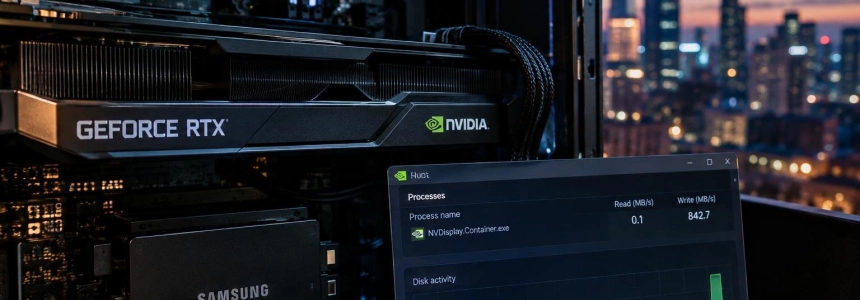
The Nvidia 621.35 hotfix may not have eliminated excessive writes on some SSDs: one user recorded 36 GB of writes to the drive during roughly nine hours of idle time. The problem has been linked to recent Nvidia drivers and the NVDisplay.Container.exe process, although the available tests do not indicate that it affects every system.
The versions mentioned in the reports include 621.14 and 621.24, as well as hotfix 621.35. Rock Paper Shotgun explains how to check activity in Windows Task Manager; PC Gamer and Computer Hoy note that the problem may return after several hours, even after installing the fix.
Which drivers have been linked to the issue
The following table summarizes the versions cited and the results described by the publications. It does not mean that every system running those drivers is affected: excessive writes have been observed on some systems, and the hotfix tests are attributed to specific users.
| Driver | What was observed |
|---|---|
| 621.14 | Tom’s Hardware cites reports of background writes. |
| 621.24 | Peaks of up to 30 GB per hour have been reported; a test cited by Wccftech recorded 1.18 TB of I/O writes over five days. |
| 621.35 | The hotfix initially reduces activity, but writes returned in an overnight test. |
| 621.01 | This is the previous version that PC Gamer recommends reverting to; the cited tests recorded much less activity. |
The test described by Computer Hoy used Windows 11, a GeForce RTX 4090, and a 2 TB Samsung 990 PRO. After roughly nine hours of idle time, the Nvidia process had accumulated more than 40 GB of I/O writes, and the SSD recorded around 36 GB. This is a specific case: it does not establish that every system running 621.35 will produce the same volume.
How to check whether your system is writing too much
Open Task Manager and go to the “Details” tab. Rock Paper Shotgun says to check process activity there, rather than looking only at overall disk usage.
Add the write column: right-click the column headings, choose “Select columns,” and check “I/O write bytes” (the name may appear differently depending on your Windows language). This is the column that lets you compare the write activity associated with each process.
Find NVDisplay.Container.exe and see whether its counter is increasing noticeably. The value is expressed in bytes, according to Rock Paper Shotgun; it is not a figure per hour. To find out whether it is still growing, compare the counter at different times and check whether it continues to accumulate while the system is idle.
Also check the SSD’s status if you already use a tool that displays its write metrics. In the test published by Wccftech, NVDisplay.Container.exe activity was compared with the device’s S.M.A.R.T. write metrics using HWiNFO64. You do not need to install that tool to perform the basic process check.
Compare the result with your installed driver. The versions highlighted in the reports are 621.14, 621.24, and 621.35. If you cannot identify it with certainty, do not assume you have one of them: the activity observed in the process is a separate clue from the driver version.
What to do if the counter keeps rising
Do not treat the hotfix as a guaranteed solution. Nvidia released 621.35 to fix the issue, but PC Gamer and other publications cite tests in which writes return after a period of use. The hotfix may reduce them at first without resolving them completely.
Consider reverting to 621.01 if you are affected. PC Gamer says this version remains the recommended rollback option; in the measurements reported by Wccftech, NVDisplay.Container.exe generated 12.55 MB in a 55-minute test and 9.47 MB in another lasting 93 minutes. These are results from specific tests, not a guarantee for every system.
If you have already installed 621.35, measure again after restarting and again after several hours. The test reported by Computer Hoy detected barely any activity during the first hour, but recorded writes overnight. A check immediately after installing the driver might not show the behavior that appears later.
If you do not see abnormal writes, do not make changes as a precaution. Reports say the issue does not appear to affect every system. Keep the process reading as a reference and repeat the check if the counter starts growing without any activity to explain it.
PC Gamer says that 621.35 had not yet appeared in the GeForce app and could be downloaded directly from Nvidia’s website. That does not make the hotfix the safest option for anyone who has already detected the problem: the cited tests show that the behavior may return.
Mistakes to avoid
Do not confuse the cumulative counter with a rate. “I/O write bytes” displays bytes, not GB per hour. A large number by itself does not tell you when the writes occurred; compare how it changes over an interval, and do not present it as an instantaneous speed.
Do not disable Nvidia services blindly. Tom’s Hardware cites a user who stopped the NVIDIA Display Container LS service to stop the process, but also explains that this service is required to run Nvidia Control Panel and Nvidia App. It is not the first measure to try if you need those applications.
Do not treat a single measurement as a universal diagnosis. The most detailed results come from individual tests on specific systems over specific periods. Also, do not conclude that 621.35 does nothing: the cited tests show less initial activity and, in some cases, fewer writes than 621.24, although not a complete fix.
If NVDisplay.Container.exe continues accumulating writes after several hours, the practical step recommended by PC Gamer and the published tests is to revert to 621.01 and measure again, rather than assuming that hotfix 621.35 has resolved the issue.
Sources: PC Gamer, Computer Hoy, Rock Paper Shotgun, Wccftech, Tom's Hardware