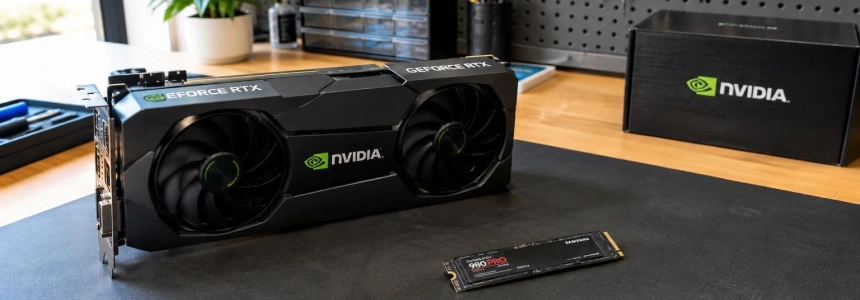
Some Windows 11 users with GeForce 621.14 and 621.24 drivers have detected heavy SSD writes even when their computers are idle. The process identified is NVDisplay.Container.exe, which repeatedly writes to the nvlog.nvlgstg log; NVIDIA has not confirmed the issue or announced a fix, and reports indicate that it does not occur on every PC.
Who is affected, and what should you look for?
Reports are concentrated around GeForce 621.14 and 621.24, but some users with these drivers have not noticed anything unusual. Therefore, finding one of these versions installed does not, by itself, prove that your SSD is receiving abnormal writes. The specific sign is NVDisplay.Container.exe repeatedly writing to nvlog.nvlgstg while you are not using the computer.
The log is usually located at C:\ProgramData\NVIDIA Corporation\nvtopps\nct\nvlog.nvlgstg. Windows Latest reports a measurement of 515 MB of process activity over five minutes with version 621.14; in another measurement, the system drive recorded 270 MB of actual writes. Users with 621.24 have reported figures of up to 30 GB per hour, but these are individual observations, not a result that can be attributed to every system.
How to check and choose a response
Identify the installed driver. Check the application or tool you use to manage the NVIDIA driver to see whether you have GeForce 621.14 or 621.24. If you are using one of these versions, proceed with the measurement; do not assume your computer is affected based only on the version number. Reports describe the issue with both versions, including 621.24.
Open Resource Monitor. Press
Win + R, typeresmon, and open the Disk tab. Under “Disk Activity,” sort by “Write (B/sec)” and observe the computer without running any tasks. Look for NVDisplay.Container.exe and the nvlog.nvlgstg path in the file list. Task Manager can show disk activity, but it does not identify the specific file as this view does.Check whether the writes keep happening while idle. Do not focus on a single spike: check whether the process keeps writing to the log at intervals while the PC remains idle. Windows Latest notes that some measurements increased when visiting video pages in a browser. If you observe this pattern, note what Resource Monitor shows and how long the test lasts; this will let you compare observations under similar conditions.
Compare the activity with the SSD. If you have CrystalDiskInfo or the drive manufacturer’s application, record the “Host Writes” or “Data Units Written” value. Leave the computer idle for a measured period—Windows Latest suggests one hour—and check the counter again. The difference helps distinguish writes requested by a process from data that actually reached the drive. The log file’s size alone does not reveal the total physical writes.
Decide whether the impact warrants changes. If you do not see repeated activity or a noticeable increase in the SSD counter, these reports provide no reason to change drivers as a precaution. If you do, you can consider the following options, taking into account which features you need and what issues an older version might bring.
Consider rolling back, but be aware of the risks. Some users say GeForce 621.01 reduces or eliminates the writes, but this is not an official fix, and reverting to this version may bring back video playback issues: NVIDIA’s release notes indicated that some systems with RTX 50 GPUs could experience freezes or a black screen. The issue was fixed in later versions, including 621.14. Before changing drivers, weigh your computer’s video stability against the measured SSD activity; do not treat 621.01 as an option without trade-offs.
Treat the service workaround as temporary. Windows Latest reports that stopping NVIDIA Display Container LS, deleting nvlog.nvlgstg, and restarting the service reduced one user’s writes by approximately 91%, but the log began growing again. Reports do not provide a menu path for doing this or establish that the result will be the same on every PC. Disabling the service entirely may stop the process, but it can also leave you without NVIDIA Control Panel and NVIDIA App. Do not do this unless you are willing to lose those features.
Mistakes to avoid
Do not conclude that your SSD is in immediate danger just because you see a high write value for the process. In one measurement cited by Windows Latest, the activity attributed to NVDisplay.Container.exe exceeded the actual writes recorded by the system drive. Also check the SSD’s SMART counter before estimating how much is being physically written.
Do not extrapolate an extreme figure to all users of 621.14 or 621.24. Reports range from several gigabytes per hour to higher figures, but other computers with the same drivers show no abnormal activity. Tom’s Hardware and igor’sLAB also describe the highest figures as user reports, not as a measurement reproduced on every system.
Do not roll back to 621.01 without considering the cost. This version is associated with fewer writes in some comparisons, but NVIDIA fixed video freezing and black screen issues affecting certain RTX 50 systems in later versions. Also, do not assume that a clean reinstall will solve the issue: Windows Latest reports that an attempt involving three clean reinstalls of 621.24 did not change the behavior.
Finally, do not disable NVIDIA Display Container LS as if it were a harmless setting. The service is required for parts of NVIDIA Control Panel and NVIDIA App, and deleting the log produced only a temporary reduction in the cited test. If you measure sustained writes, keep the Resource Monitor and SSD readings so you can check them again when NVIDIA publishes a response or a driver with a fix.
Sources: Windows Latest, PCWorld, Hipertextual, Tom's Hardware, igor´sLAB