We love that our devices have hidden features.
It's fun to learn something new about the technology we use every day, to discover those little features that aren't advertised by the manufacturer. And unless you spend a lot of time playing around in the Phone app, you probably don't know, until now, about secret codes by dialing them either.
Dialer codes are, as the name implies, codes that you dial in the Phone app on your iPhone. These codes can do many different things: one allows you to remove caller ID when calling other numbers, while another can show how strong your current cellular signal really is. They can change your phone's settings or show you data you didn't know about.
Now, one thing to keep in mind: these codes can be tricky. Many are carrier specific, so they may not work depending on your cellular connection. For example, I was able to encounter some issues with several of these codes with my carrier on an iPhone 12 Pro Max. Still, the codes below are tried and true, so they should work for the correct device and carrier combination.
Here are some of the codes that we think are most interesting and useful.
Making anonymous calls on your iPhone
The cell phone or cell phone, with its caller ID, made making anonymous calls a thing of the past. That is, unless you know how to hide your caller ID. All you need to do is add *67 in front of the phone number you are trying to reach, and your call will appear as "NO CALLER ID" on the other line. If you find that this option does not work for you, you may be able to use the code #31# which has also been proven to work.
This dialer code is perfect for one-off situations where you don't want the recipient of your next call to know your number. But if you need all your calls to be anonymous, you can do this from Settings>Phones> Show my caller ID.
Show your caller ID
If you choose to disable Show My Caller ID, you may need to know this code. Some numbers do not allow calls from unknown callers, so you will need to reveal your identity in order to get through. Other times, you may be calling someone you want to let them know who you are. In either case, all you have to do is add *82 to the number you are dialing.
Blocking outgoing calls
Handing over your iPhone to someone to use can be an excruciating exercise in trust. If one of your concerns is who that person might call with your iPhone, you should know that there is a speed dial code to block all outgoing calls. Just dial *33* followed by a four-digit PIN and # (example: *33*1234#). That PIN ensures that someone cannot easily disable the block. Once you press the call button, the feature should load and activate. You can deactivate it by typing the same code and PIN combination.
Check the mobile signal strength of your iPhone
Have you ever experienced a poor cellular network connection, even when your iPhone shows full bars? So have we. That's where the field test can come in handy; this hidden menu contains a lot of data about your cellular system, but what we want to know is how strong the connection is.
Note: this is one time when older iPhones have a feature that newer iPhones don't. If you have an iPhone 12 or iPhone 13, you cannot use this trick. All iPhones can use the field test menu, but only LTE iPhones (i.e. no 5G connection) will be able to see the signal strength of your phone.
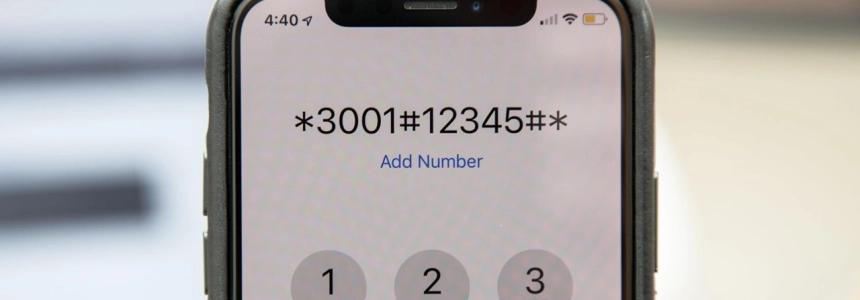
You can use the dialer code *3001#12345#* to open the field test menu. Try to ignore the sea of information this menu provides and tap the menu icon on the right. Now, scroll down to LTE and choose Service Cell Measurement. Notice the numbers next to rsrp0 and rsrp1, which represent your current cell tower and backup tower, respectively. The closer the number is to zero (0), the better your connection to the tower. The farther away it is, the worse the connection.
Verify your iPhone IMEI
Your iPhone's IMEI is a unique number that can be used to identify your specific device. For this reason, it is often used to check if a phone has been reported stolen. It's important that you don't give this number to anyone who asks, but how can you find out in the first place?
One way is through a dialer code. Dial *#06# and, before you have a chance to press the call button, you will see a device information page appear. Your IMEI will be the second number listed, along with various other numbers depending on your specific type of iPhone.
View your operator details
Want to know how many minutes you have left on your plan? Try *646#. If you want to check your current balance with your carrier, dial *225#. At AT&T, for example, I can type *3282# (*DATA#) to see how much data I have left on my plan for the current month.
Enabling call waiting
While you can set call waiting from Settings>Phone>Call Waiting, you can also quickly enable it with a code. Simply type *43# to enable it. However, this setting is probably already enabled; without it, incoming calls go straight to voicemail if you are on another call at the time you receive it.