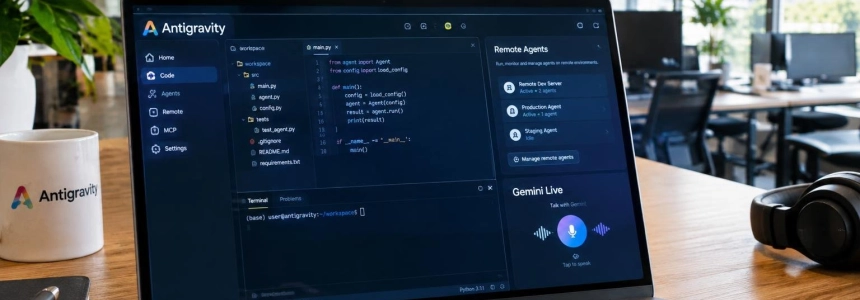
Antigravity 2.29 adds coding agents that work in Google’s remote environments and a voice conversation mode powered by Gemini Live. Google has begun rolling out remote agents to AI Pro and Ultra subscribers. The update also includes a redesigned interface and several improvements to the integrated browser and automations.
The update applies to the Antigravity desktop app for Mac, Windows, and Linux. The rollout is gradual: Google warns that it may take a few days for the version to reach all users and that some features may not appear immediately.
Cloud agents that keep working
The most significant change is Remote Agents: agent sessions that run in a remote environment managed by Google, separate from the user’s computer. According to the Antigravity documentation, tasks can continue even if the browser is closed, the laptop is suspended, or the user switches devices.
To start a remote project, users can attach GitHub repositories, Google Drive files, or files uploaded from their computer. The documentation also allows users to start a remote conversation without configuring resources in advance. Connected repositories are cloned and mounted in the remote workspace; Drive files are accessed during the conversation.
Access is not limited to the desktop app. Google lets users start and manage agents from Antigravity App, the CLI, or a browser at antigravity.google.com. On mobile, users can follow a conversation and handle permissions; 9to5Google notes that the existing Remote Control feature also lets them do this from their phone.
The CLI requires version 1.4.12 or later to start remote sessions. Users must sign in with a personal Google account on an eligible plan and launch the program with the remote option. By contrast, voice mode for the CLI is available starting with version 1.5.0. There is one important limitation: the documentation lists voice among the features that are not yet available in remote CLI agent sessions.
Remote Agents is not the same as Remote Control. The former runs work on Google’s remote infrastructure and does not require the local computer to stay on. Remote Control connects to a local instance of the app or CLI, so the computer hosting it must remain on and connected. Google positions this second option for tasks that depend on local hardware, development servers, or uncommitted changes in a local checkout.
Attached resources have specific limits. Each uploaded file can be up to 8 MiB; a project can contain up to 50 files and 100 MiB in total, while the account has an aggregate limit of 2 GiB. Files persist across conversations in the project and are placed in the remote environment under /home/antigravity/upload.
Permissions also require attention. In the remote CLI, the default setting is “always-proceed (turbo),” which runs commands without asking for approval. Users can switch to a mode that requests permission for sensitive operations or one that asks for review before every command. Remote sessions use their own permission settings; they do not inherit local permissions.
We want Antigravity to be working for you all the time. We’ve been rolling out remote agents this week. Your tasks run in independent cloud virtual machines. Fire off a task, step away for coffee, unblock permissions from your phone, and come back to passed tests and a clean pull…
— Google Antigravity
Gemini Live brings conversation to the agent
The new voice mode turns an existing conversation into a two-way spoken dialogue. Users can assign a task, add instructions while the agent works, ask questions, and respond to permission requests without returning to the keyboard. The agent replies aloud, and the work—such as file changes and command results—continues to appear in the conversation.
The feature is available in the app and the CLI, and uses Gemini Live. In the app, it starts with the “Start Voice mode” button when the message box is empty; users choose a voice the first time. In the CLI, users can type /voice live or press F6. This is different from dictation: dictation transcribes what the user says into the text box, while voice mode lets users talk with the agent and hear its replies.
Google offers nine voices and speed controls. 9to5Google reports that the app’s speed setting ranges from 0.75x to 2x; the CLI documentation describes a different range, from 0.5 to 3. In the app, Option+M on macOS and Alt+M on Windows and Linux mute the microphone. To mute the agent’s voice, use Shift+Option+M or Alt+Shift+M, respectively.
By default, the agent works silently and speaks when it has an answer or needs input. Users can request periodic updates; Google says that, when enabled, they arrive approximately every 30 seconds, though users can request a different interval. Voice mode starts in silent mode each time it is activated.
Voice also lets users interrupt or redirect a task in progress: they can add a detail, ask the agent to check only something, or tell it to stop. If the agent requests permission for an action, it reads the request aloud and waits for a spoken response. However, some destructive operations—such as deleting files, running commands with elevated privileges, or force-pushing to a Git remote—require clicking “Allow” on screen. Users can deny them by voice.
In the app, the user’s words appear in a panel above the message box, and the agent’s response lights up word by word as it speaks. When the conversation ends, it displays a card with the transcript. In the CLI, both sides’ speech appears in the conversation; F6 mutes the microphone, and Esc, when the input box is empty and the agent is idle, ends the voice session.
Voice mode can remain active in a floating window when switching to another conversation in the app. It can be enabled in only one conversation at a time. When users hang up, any tasks still running continue in the conversation. In an SSH session in the CLI, Google says users can run agy mic-serve on their local computer and set ANTIGRAVITY_MIC to use the microphone and speakers there.
A reorganized conversation screen
The page for starting conversations now places the instruction box at the bottom and displays a greeting at the top. The branch and Git worktree selector is combined into a single menu for projects with one repository, while the agent selector becomes part of the model menu.
The app adopts Google Sans and the Onyx theme by default if users have not chosen others. These can be changed under Appearance; there are also options to use Inter or System UI and to expand the conversation to the full width of the central panel. The update also adds a screen reader mode under Accessibility.
The automations page now separates tasks into the Scheduled, Always on, and Paused lists. It displays the next and last run times, lets users configure schedules through menus, and provides details within the page, as well as a full-screen creation form.
Other additions in the update include a native viewer for Jupyter notebooks with the .ipynb extension. It can display code cells, Markdown, tables, images, and outputs without leaving Antigravity. In long conversations, collapsed chapter cards get short AI-generated titles instead of showing only a date.
Downloads, history, and browser settings
The integrated browser now saves downloads directly to the chosen folder without interrupting browsing with prompts. A toolbar drawer displays progress, and users can change the default folder under Settings > General. The address bar suggests pages from browsing history and lets users clear that history from the same settings section.
Google also redesigned the address bar to make connection security indicators clearer. A thin line at the top of the page shows loading progress, and sites that request text open an input box within the page.
From the New Tab page in the side panel, users can open a web address or search Google. They can also drag links into the panel to open them in the integrated browser and close all tabs to the left from a tab’s menu.
The version 2.29 changelog also includes customizable keyboard shortcuts, faster cold starts, and smoother animations when opening or closing the sidebar and side panel. The update is rolling out gradually; Google does not specify in the documentation when it will be available to everyone.
Sources: 9to5Google, Google Antigravity, Google Antigravity Docs, Google Antigravity Docs, Google Antigravity Docs