Despite all the good things about them, mobile devices can expose your children to content that they're better off not seeing. The good news is that your Android phone or tablet comes with built-in tools that can help you ensure your kids can only access age-appropriate content and, as we'll explain, those tools are effective and easy to use.
In this tutorial, we'll show you how parental controls work on a regular Android smartphone. Note that other Android devices may have their own manufacturer-specific parental control systems. For example, Amazon's Kindle Fire tablet has its own versions of Amazon's parental control software, and a parental control panel unique to Amazon. In addition, devices such as the Kurio Tab Connect have child-friendly software overlaid on the main Android operating system. However, the screen directions you'll see here apply to most recent Android devices.
Here we'll look at two apps: the Google Play Store app and the Google Family Link app. Although Family Link is primarily an Android app, you can also install it on iOS to create and manage user accounts. If your child is under 13, both the Android and Apple versions allow you to create Google accounts for your child.
Google Play Store
Android parental controls are located within the Google Play Store app, so you'll need to open it on the device you want the child locks to work on. Depending on the specific version of Android you have, you'll either see the three-line "hamburger" menu icon in the search bar at the top, or you'll have a tappable profile picture as shown in the image. Tap here and then tap Settings.
1. Search for 'Family': You should see several options on the Settings page. The one we want is Family. Tap the arrow on the right of the screen.
When you tap the arrow, the section will expand, allowing you to see the available options and the current status of parental controls. If no one has yet set up parental controls on that device, you should see that parental controls are disabled. Tap that option to continue.
2. Press the button: Before you can adjust the adult content blocking settings, you must enable parental controls. You can do this by tapping the button at the top of this page. Obviously, if you want to turn parental controls off again, press the same button.
3. Choose a PIN : Of course, there's no point in having parental controls if kids can just go into Settings and turn it off. To avoid this, Android will now ask you to create a PIN - don't forget it! You won't be able to disable locks without it.
4. Select content: You should now return to the Settings> Parental Controls page, this time you will see the message "Parental Controls are enabled" at the top. Now you can choose the type of content you wish to restrict. In this example, we will adjust the settings for apps and games.
5. Set the age limit:
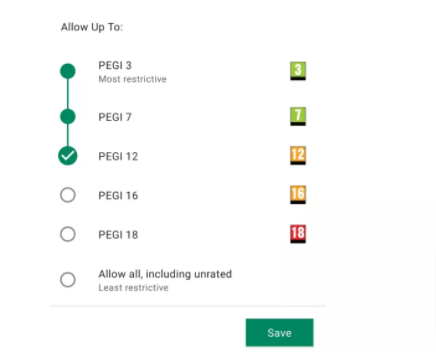
As you can see, this system couldn't be simpler: just choose the age rating you want to apply and Android will do the rest. These ratings are PEGI, which stands for Pan European Game Information. If you restrict games and apps to a particular age, you will also exclude apps that do not have an age rating. It is important to note that PEGI ratings work specifically on apps, not necessarily on the content you may find in them. Some apps with in-game advertising or content that comes from external sources, such as online multiplayer, may include content that is not appropriate for the age rating. Also, please note that these restrictions block items in the Play Store app, but do not work retrospectively.
Therefore, if you have previously downloaded The Bloody Revenge of the Axe Psycho III, parental controls will not block it...
If you're using Google's Family Link app, you can block individual apps from within the app or with Family Link on the web. did you say Family Link?
Install Family Link
If you want more complex parental controls, you need the Family Link app from the Google Play Store or iOS App Store. With it you can create a family group by inviting family members via Google Accounts (or creating new ones, for those under 13), and once you've set it up, you can set restrictions per account separately, not just per device.
Family Link lets you set time limits and bedtimes, block or allow specific apps, locate devices, and hide some apps altogether. It will also notify you if your family members try to download apps from the Play Store, allowing you to approve or reject the request.
That's not all. Family Link can also limit apps' access to hardware features like the microphone or camera; you can set filter preferences for the YouTube Kids app and manage SafeSearch settings for Google searches.
You can do some of these things through the Family Link website (family.google.com), but features like screen time limits are for apps only.
No parental control system can 100% prevent your children from seeing inappropriate content and, of course, you can't prevent them from seeing things they shouldn't on their friends' devices. But Google's tools are very good and should give parents much-needed peace of mind.
Kids vector created by vectorjuice - www.freepik.com