
Anyone who has built a WebGL scene with a form in it knows the dilemma. Either you paint the interface by hand on the canvas and lose text selection, accessibility and line wrapping, or you lay HTML on top of the canvas and spend your life recalculating positions so it doesn't drift away from the scene. Since 26 October there is a third way: Chrome 157 ships HTML-in-Canvas, the API that draws live HTML inside a 2D, WebGL or WebGPU <canvas>.
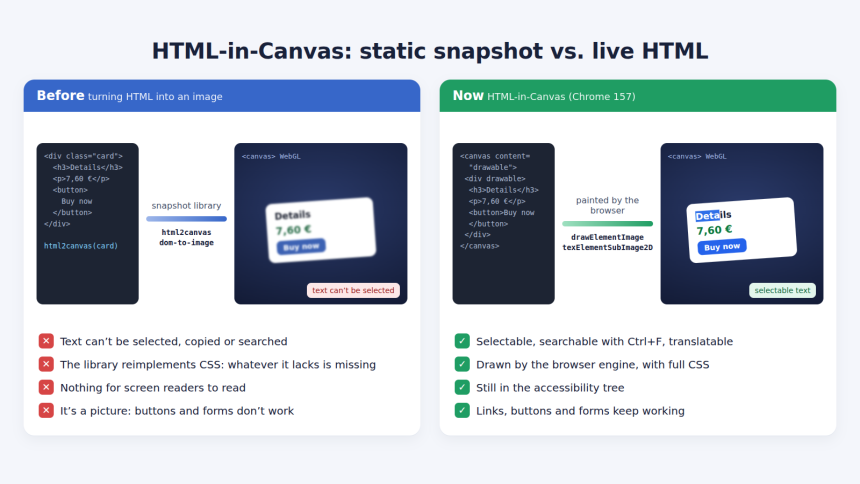
The difference from what we had before is that the browser doesn't take a picture of the HTML: it keeps treating it as HTML. Text can be selected and copied, screen readers read it, Ctrl+F finds it, the translator translates it and autofill fills in its fields, even when it is warped over a 3D mesh. The proposal has been at the WICG since August 2024. Chrome first shipped it behind a flag and, from version 148, as an origin trial, and along the way it changed names several times; the mapping is further down in case you tried an earlier version.
The old problem: DOM or pixels
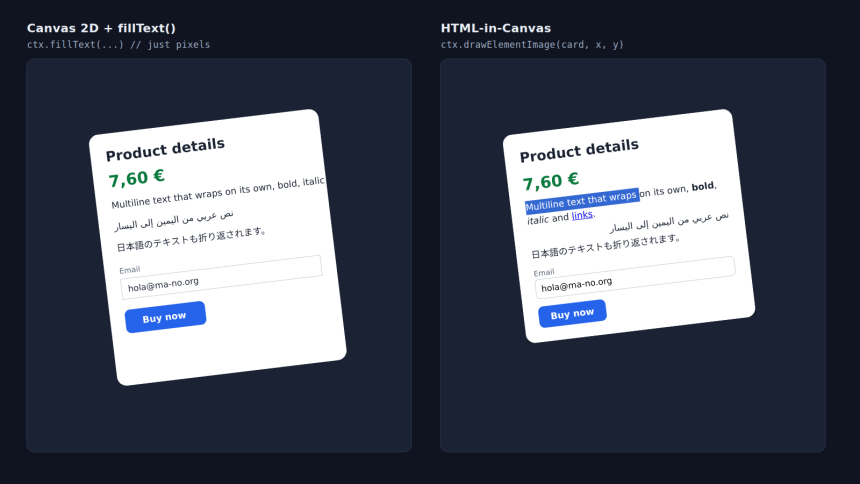
Text drawn with ctx.fillText() is pixels. It doesn't wrap, knows nothing about bold or right-to-left text, can't be selected and, for a screen reader, doesn't exist: you have to maintain a parallel, invisible DOM by hand that says the same thing. Serious internationalisation also means shipping a JavaScript text layout engine.
The usual escape routes came at a price:
- Turning HTML into an image with libraries such as html2canvas or dom-to-image. What reaches the canvas is a photo: the button is no longer a button. And since the library reimplements CSS on its own, whatever it doesn't support simply doesn't show up.
- Floating HTML over the canvas. It works until the camera moves: DOM and pixels run on different timings and the panel jitters or lags behind. HTML also always sits on top of everything, so it can't hide behind a 3D object, be seen through glass or be reflected in a mirror. And every frame you have to write
style.transformon every panel, with the style recalculation that entails.
How it works: attributes, the paint event and one draw call
The API rests on very few pieces. The first is declarative: the <canvas> gets content="drawable", which tells the browser to lay out its children instead of treating them as fallback content, and each element you want to draw gets the drawable attribute. The HTML lives inside the canvas, laid out but invisible until you paint it.
The second is the paint event. The browser fires it on the canvas whenever the look of a drawable element changes: a style, the text in a field, focus or hover. You draw inside the handler. That's enough for a complete 2D example:
<canvas id="stage" width="600" height="400" content="drawable">
  <div id="card" drawable>
    <h2>Product details</h2>
    <p>€7.60</p>
    <label>Email <input type="email"></label>
    <button>Buy now</button>
  </div>
</canvas>

<script>
  const canvas = document.getElementById('stage');
  const ctx = canvas.getContext('2d');
  const card = document.getElementById('card');

  canvas.addEventListener('paint', () => {
    ctx.reset();
    ctx.rotate(-0.1);
    ctx.drawElementImage(card, 40, 80);
  });
</script>
The card is drawn rotated inside the canvas and yet the email field accepts typing, the button gets the click where it appears and the text can be selected. In 2D the browser syncs the geometry by itself: it knows where you drew the element and routes clicks and focus rings there.
A few details worth knowing from the start:
drawElementImage()takes the same variants asdrawImage(): position; position and size; source crop; and crop plus destination (3, 5, 7 and 9 arguments).drawableelements can be nested. Adrawablebutton inside adrawablecard is left out of the card's drawing and painted with its own call, so it can be animated separately without breaking the HTML semantics.- The event carries
changedElements, the elements that changed since the last paint, so you don't have to redraw everything. - DOM changes made inside
paintshow up on the next frame. If something must appear on the current one, change it inrequestAnimationFrame, which runs earlier. - For continuous animation,
canvas.requestPaint()asks for anotherpainton the next frame even if nothing changed, much likerequestAnimationFrame().
flowchart TD
    A["HTML changes: style, text, focus"] --> B["paint event on the canvas"]
    B --> C["2D: drawElementImage"]
    B --> D["WebGL: texElementSubImage2D"]
    B --> E["WebGPU: drawElementImageToTexture"]
    D --> F["updateElementGeometry"]
    E --> F
    C --> G["Clicks, focus and accessibility where it was drawn"]
    F --> G
WebGL: HTML as a texture
In 3D the idea is the same, except the element isn't drawn on the canvas but uploaded to a texture. First you allocate the texture memory once, passing null as data, and then, on every paint, you copy the HTML in with texElementSubImage2D():
const panel = document.getElementById('panel'); // the drawable element
const gl = canvas.getContext('webgl2');
const tex = gl.createTexture();
gl.bindTexture(gl.TEXTURE_2D, tex);

// Allocate the memory once (or whenever the element changes size)
gl.texImage2D(gl.TEXTURE_2D, 0, gl.RGBA8, 640, 400, 0,
              gl.RGBA, gl.UNSIGNED_BYTE, null);

canvas.addEventListener('paint', () => {
  // 1. HTML into the texture
  gl.bindTexture(gl.TEXTURE_2D, tex);
  gl.texElementSubImage2D(gl.TEXTURE_2D, 0, 0, 0, panel);

  // 2. The scene, with the texture on whatever geometry you like
  drawScene();

  // 3. Where the panel ended up, in the canvas's CSS pixels
  const canvasTransform = new DOMMatrix().translate(x, y).scale(scale);
  canvas.updateElementGeometry(panel, { canvasTransform });
});
The third step is the one people forget. In 2D the browser knows where the element ended up; in WebGL it doesn't, because the shader can put that texture anywhere. updateElementGeometry() tells it, so clicks, focus and accessibility tools point to the right place. Chrome's own documentation shows it with a 3D card that keeps spinning after the code stops calling this method: clicks still land where the card used to be. For background elements there is a preserveHitTestOrder: true option, which stops the last updated element from jumping to the front of the hit-test order.
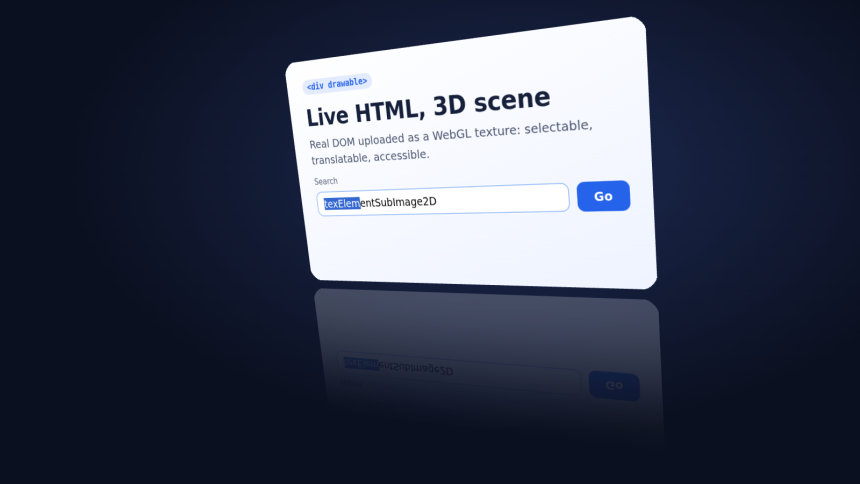
Once on the GPU, that texture is just another texture: you can curve it over a mesh, light it, reflect it or run it through a shader. This article's cover image is the same form rippled by a vertex shader and shaded along the curve.
In WebGPU the call is drawElementImageToTexture(), on the device queue, and the geometry is synced the same way, with updateElementGeometry():
canvas.addEventListener('paint', () => {
  device.queue.drawElementImageToTexture(
    { source: panel },
    { texture: texture }
  );
  drawScene();
  canvas.updateElementGeometry(panel, { canvasTransform });
});
What HTML keeps inside the canvas
According to Chrome, content drawn this way keeps:
- Full text layout: multiple lines, bidirectional text and CSS.
- Selection, copy and paste, and the context menu, on a 3D surface too.
- The accessibility tree, for screen readers.
- Find in page, translation and autofill, even inside WebGL and WebGPU textures.
- Extensions: one that replaces text also changes the text shown on the 3D mesh.
- Style inspection and editing in DevTools.
- Indexing by crawlers and AI agents, which see DOM instead of an image.
- Exporting the whole canvas with
toDataURL(),toBlob()or, as video,captureStream().
Accessibility has a nuance. A drawable element that hasn't been drawn yet, or whose geometry hasn't been updated, reaches the accessibility tree without a position: a screen reader can read it, but a magnifier knows it isn't on screen. If you leave views in the canvas that you no longer draw, remove them from the DOM or mark them with aria-hidden="true" or inert.
What the browser won't draw
There's a restriction that doesn't appear in the examples and can catch you out. Since a canvas can be read back pixel by pixel (with getImageData() or from WebGL), the API doesn't paint anything that could be used to spy on the user. According to the WICG proposal, these are left out:
- Cross-origin content: images, iframes, CSS backgrounds with
url(), external SVG or tainted canvases. A same-origin iframe is painted, but not the cross-origin content inside it. - System colours, theme and preferences.
- Spelling and grammar markers.
- Whether a link has been visited.
- Autofill data that hasn't been confirmed yet.
- Subpixel text anti-aliasing, captions and video controls, and input method (IME) pop-ups.
In practice: if your card shows an image served from a CDN on another domain, it won't appear in the canvas. Find-in-page highlights, the text caret and the look of form controls are drawn.
Crisp pixels: the detail everyone forgets
If the text comes out blurry, it is almost always because the canvas grid doesn't match the screen's physical pixels. HTML is laid out in CSS pixels, the canvas has its own grid (width and height) and the screen has its real pixels; every conversion that doesn't line up softens the text once more. Chrome recommends sizing the canvas with a ResizeObserver on device-pixel-content-box:
let scaleX = 1, scaleY = 1; // canvas pixels per CSS pixel

const observer = new ResizeObserver(([entry]) => {
  const dpc = entry.devicePixelContentBoxSize;
  const { width, height } = entry.contentRect;
  canvas.width = dpc ? dpc[0].inlineSize : Math.round(width * devicePixelRatio);
  canvas.height = dpc ? dpc[0].blockSize : Math.round(height * devicePixelRatio);
  scaleX = canvas.width / width;
  scaleY = canvas.height / height;
});
observer.observe(canvas, { box: 'device-pixel-content-box' });
Watch the units: the destination coordinates of drawElementImage() are in canvas pixels, while offsetWidth, getBoundingClientRect(), pointer events and the canvasTransform of updateElementGeometry() are in CSS pixels. To centre an element you multiply its measurements by scaleX and scaleY. And since the element's border box is what gets drawn, box-sizing: border-box stops padding from making it bigger than you expect.
If you tried it during the origin trial, check your code
Chrome 150 and Chrome 155 changed the API following feedback from developers and standards groups. Code written for the first versions won't work as is:
| Before | Now (Chrome 155+) |
|---|---|
<canvas layoutsubtree> | <canvas content="drawable"> plus drawable on each element |
| Only direct children of the canvas could be drawn | Any descendant with drawable, nestable |
drawElementImage() returned a matrix you had to copy into style.transform | Returns nothing: in 2D it syncs automatically (unless you pass preserveElementGeometry: true) |
WebGL: texElementImage2D() | texElementSubImage2D(), with offsets and memory allocated beforehand with texImage2D(…, null) |
WebGPU: copyElementImageToTexture() | drawElementImageToTexture(), with sourceX, sourceWidth… and size |
The Chrome blog published snippets for supporting several versions at once, for example checking 'texElementSubImage2D' in WebGL2RenderingContext.prototype before choosing the call.
Detecting support and having a plan B
For now this is a Chrome thing. Mozilla has had a standards-position request on the proposal open since September 2024 and WebKit since March 2026, neither with a verdict. Any production use needs feature detection. This is the one Chrome suggests:
export function supportsHtmlInCanvas() {
  if (typeof document === 'undefined') return false;
  const canvas = document.createElement('canvas');
  canvas.setAttribute('content', 'drawable');
  return canvas.content === 'drawable';
}
If it returns false, the alternatives are the usual ones: a different interface, HTML floating over the canvas, the three-html-render library, html2canvas or dom-to-image. None of these libraries are Google's; they are community projects.
Three.js, Babylon.js, PixiJS and PlayCanvas
Writing every panel's matrices by hand gets old fast, and the engines are already on it:
- Three.js: experimental support with
THREE.HTMLTexture. - Babylon.js: a
BABYLON.HtmlTextureclass. - PixiJS:
HTMLSourcesince version 8.19.0. - PlayCanvas: textures fed from HTML with
setSource(). - CanvasUI: an open-source component library designed for HTML-in-Canvas.
With Three.js, putting an HTML element on the faces of a cube looks like this:
const material = new THREE.MeshBasicMaterial();
material.map = new THREE.HTMLTexture(htmlPanel);
const cube = new THREE.Mesh(new THREE.BoxGeometry(1, 1, 1), material);
scene.add(cube);
Maturity varies from engine to engine; check the documentation before betting on one.
What it's for (and what it isn't)
Where it will be felt most is in applications that already live inside a canvas: graphics editors, whiteboards, spreadsheets or design tools that today draw their own menus and text boxes. They can use real HTML there, gain accessibility and get rid of the code that imitated what the browser already knows how to do. Also in games and WebXR, with in-game terminals or books you read inside the scene; in GPU-accelerated charts with multi-line legends and labels; in product configurators with price and options attached to the 3D model; and in creative tools that mix HTML typography with shaders and export the result as an image or video.
For an ordinary website it adds nothing. A blog, a shop or an admin panel are better off in the good old DOM, which is simpler, faster to maintain and works in every browser. HTML-in-Canvas makes sense when there is already a canvas and, until now, the HTML had to stay outside it.
How we made the screenshots
The images in this article aren't mock-ups: they are screenshots of two small demos we wrote to test the API. We made them with Chrome 156, which already includes the implementation behind the chrome://flags/#canvas-draw-element flag (or by launching the browser with --enable-blink-features=CanvasDrawElement); in Chrome 157 you don't need anything. The WebGL demo uses no engine, just WebGL2: a 64×64 grid mesh with the form as its texture, the reflection drawn by mirroring the geometry, and a wave shader for the cover. What surprised us most was watching the search field's text selection travel with the texture, bend with the wave and show up in the floor reflection without writing a single line for it.
Sources
- HTML-in-Canvas in Chrome 157: Interactive DOM inside 2D, WebGL, and WebGPU (Chrome for Developers, 26 October 2026)
- HTML-in-Canvas documentation: concepts, 2D, WebGL and WebGPU
- API changes in Chrome 150 and 155
- WICG proposal, with the privacy section and live demos
- Community demo collection
- Mozilla and WebKit standards positions (open as of 30 October 2026)